


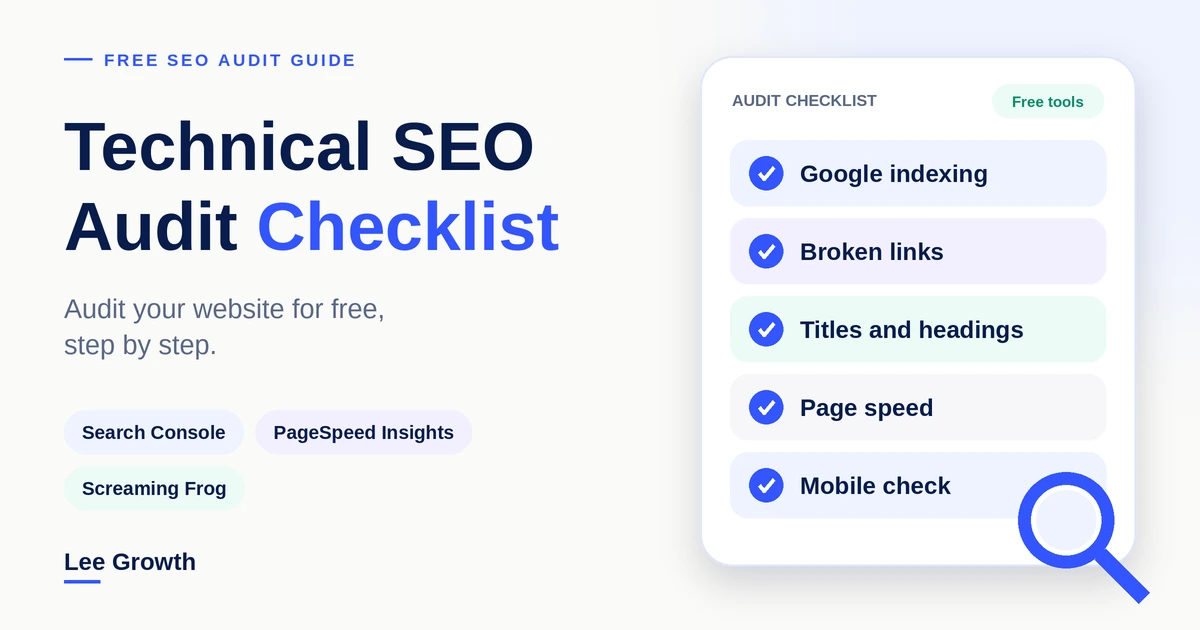
You can check your website’s SEO for free. You do not need an expensive tool. Three free tools do most of the work: Google Search Console (shows what Google can see), PageSpeed Insights (checks speed), and the free version of Screaming Frog (scans up to 500 pages for broken links and weak page details). This technical SEO audit checklist shows you what to check, how to read each result, and what to fix first.
Quick answer
To audit a website for SEO for free, do these seven things in order:
- Set up Google Search Console for your site.
- Check that Google has saved (indexed) your important pages.
- Scan your site with a free tool to find broken links and redirect problems.
- Check each key page: title, heading, content and images.
- Test how fast your pages load.
- Open your pages on a real phone.
- Sort what you found by impact and effort, then fix the biggest problems first.
An audit finds problems. It does not fix them, and it cannot promise higher rankings or more traffic. What it gives you is a short, clear list of what to fix and in what order.
Quick tip
Keep a simple spreadsheet as you go. Write the page address, the problem, and the fix. It becomes your to-do list at the end.
What Is an SEO Audit?
An SEO audit is a health check for your website. It finds problems that stop Google from finding, understanding or showing your pages. It also finds problems that make your pages harder for visitors to use.
There are two parts:
- Technical SEO checks look at how your site works behind the scenes. Can Google reach your pages? Do your links work? Does the site load fast and safely?
- On-page SEO checks look at what is on each page: the title, headings, text, images and links, and whether the page answers what people are searching for.
You need both. A great page that Google cannot save will not show up. A technically perfect page with weak content gives people little reason to choose it.
Free Tools You Need for a Website SEO Audit
You can do a good first audit with three free tools: Google Search Console, PageSpeed Insights and the free version of Screaming Frog. The table shows what each one does and where it falls short. For more options, see our guide to free and paid SEO tools for small businesses.
| Tool | What it helps you check | What it cannot tell you | Sign-in needed? |
|---|---|---|---|
| Google Search Console | Which pages Google has saved, why some are not saved, your sitemap, search clicks and real-visitor speed data | It only shows Google’s view. Some reports show a limited list of examples. It does not scan your whole site. | Yes. You must prove you own the site. |
| PageSpeed Insights | Speed for one page, using real-visitor data when available plus a test run | One page at a time. Low-traffic pages may have no real-visitor data. | No |
| Lighthouse (built into Chrome) | A test run for speed, accessibility and SEO basics | It is a test, not real visitors | No |
| Screaming Frog SEO Spider (free version) | Scans your site for broken links, redirects, titles, descriptions and headings | It cannot see Google’s decisions, rankings or real visitors. The free version stops at 500 pages, and some features need a paid licence. | You install it. No account for the free version. |
| Bing Webmaster Tools (optional) | How Bing sees your site | Bing’s view only | Yes. Site check needed. |
| Ahrefs Webmaster Tools (optional) | Site health and link data for sites you own | Check Ahrefs’ site for the current free limits | Yes. Site check needed. |
| Rich Results Test and Schema Markup Validator | Whether your extra page code (structured data) can be read | It does not promise a special result in Google | No |
One more thing to know: other tools cannot see everything Google sees. A scanner can tell you a page has a “do not save” tag. Only Search Console can tell you what Google actually did with the page. Use both.
Quick tip
Set up Search Console first. It can take days to fill with data, so start it before you do anything else. Our Google Search Console guide for small businesses shows you how.
Technical SEO Audit Checklist
Do these checks in order. Saving and reaching your pages come first, because a page Google cannot save cannot show up in search, however good it is.
How to Check If Google Has Indexed Your Pages
Indexed means Google has saved your page so it can show it in search results. Three different things can happen to a page:
- Crawled: Google’s bot has visited the page.
- Indexed: Google has read the page and saved it.
- Can appear in results: a saved page is allowed to show up. This does not mean it will rank high.
- Open: Search Console, then Indexing, then Pages (this is Google’s Page indexing report). Use the URL Inspection tool to check one page.
- Look for: Are your important pages saved? What reasons does Google give for the pages it did not save?
- A good result: Your key pages (homepage, services, best articles) are saved. The pages left out are ones you meant to leave out, like thank-you pages.
- If something is wrong: follow the steps below.
- Open the Pages report and scroll to the list of reasons pages are not saved.
- Click a reason to see example pages. Ask: do I want this page in search?
- Paste an important page address into the bar at the top of Search Console to see its status.
- Match the reason to a fix:
- Excluded by “noindex” tag: This tag tells Google not to save the page. Remove it if the page should be in search. In WordPress, check your SEO plugin and the “discourage search engines” setting.
- Blocked by robots.txt: A small file is telling Google not to visit the page. Fix the file if this is a mistake (see the next section).
- Duplicate, Google chose a different page: Google thinks two pages are the same. Pick the one you want, then make your links and tags point to it.
- Crawled, currently not indexed: Google visited but did not save it. The page is often thin, copied, or has few links. Improve it and link to it from related pages.
- Discovered, currently not indexed: Google knows the page exists but has not visited yet. More links from your other pages usually help.
- After a real fix, click Request Indexing in the URL Inspection tool. This asks Google to visit again. It does not promise the page will be saved.
Good to know: not every unsaved page is a problem. Search Console also shows only a limited list of example pages (up to 1,000), and it can be a few days behind. For more on what each message means, read our Search Console checks guide. If your pages are saved but still do not rank, see why a website is not ranking on Google.
Quick tip
For a fast first look, search site:yourdomain.com/your-page in Google. If the page shows up, it is saved. For a proper answer, use the URL Inspection tool.
How to Check If Google Can Reach Your Pages
Google can only save pages it can reach. Four things control this:
- robots.txt is a small file at
yourdomain.com/robots.txt. It tells Google which parts of your site not to visit. - noindex is a tag on a page that tells Google not to save it.
- An XML sitemap is a list of the pages you want Google to know about.
- A canonical tag tells Google which address is the main one when several addresses show the same page (more on this below).
Blocking Google from visiting is not the same as keeping a page out of search. Google warns against using robots.txt to hide pages. If other pages link to a blocked page, Google can still list the bare address. To keep a page out of search, use noindex, and let Google visit the page so it can see the tag. Google does not support noindex inside robots.txt.
- Open: your robots.txt in a browser, your sitemap (often
/sitemap.xml), the Sitemaps report in Search Console, and the Directives tab in Screaming Frog. - Look for: a line that says
Disallow: /(it blocks the whole site), blocked folders you need, pages with a noindex tag by mistake, and sitemaps that list the wrong pages. - A good result: robots.txt blocks only things like admin areas. Your sitemap lists only working pages you want saved, and it is sent to Search Console.
- If something is wrong: fix the file or setting, then check the page again. Remove deleted, redirected or noindex pages from your sitemap. WordPress SEO plugins usually build the sitemap for you.
Quick tip
After a redesign or a move to a new site, check for a stray noindex tag first. It is one of the most costly mistakes, and it is easy to miss.
How to Find Broken Links and Redirect Problems
A broken link goes to a page that does not exist. Visitors and Google hit a dead end. Every page address answers with a code. These are the ones to know:
- 200: the page works.
- 301: the page moved for good, and visitors are sent to the new address.
- 302: the page moved for now.
- 404: the page was not found.
- 5xx: the server has a problem.
A redirect chain sends visitors from page A to B to C before they reach the final page. A redirect loop sends them round in a circle, so the page never opens.
- Download the free SEO Spider from Screaming Frog, type in your homepage address and press start. This is called a crawl: the tool visits your pages by following your links, like Google does. The free version stops at 500 pages. For a bigger site, scan your most important sections first.
- When it finishes, open the Response Codes tab and filter for client errors (4xx). Click a broken address and look at the Inlinks area at the bottom. It shows which pages link to the broken one.
- Fix each one. If the page should exist, bring it back. If it moved, update the link. If it was removed and a close match exists, set up a 301 redirect to that match. Do not send everything to the homepage.
- Look for redirect chains in the Reports menu. Change the first link or redirect so it goes straight to the final page.
- Scan again to confirm the errors are gone.
A good result: all your internal links open pages that return 200, with no chains and no loops. Menu names in Screaming Frog can change between versions, so check the tool’s own help if a tab has moved.
Quick tip
Export the broken-links list to a spreadsheet. Fix the pages that have the most links pointing to them first. Small effort, big win.
How to Check Your Site Structure and Internal Links
Internal links are links from one page of your site to another. They help visitors find related pages. They also help Google find your pages and see which ones matter most. Check three things:
- Click depth: how many clicks it takes to reach a page from the homepage. Your important pages should be only a few clicks away.
- Important pages: do your main service pages and best articles get links from related pages, not just from the menu?
- Pages nobody links to: these are called orphan pages. A scanner follows links, so it will not find them. To find them, export the pages in your sitemap and the pages from your scan, then compare the two lists in a spreadsheet. Pages in the sitemap but missing from the scan are probably orphans.
How to fix it: add links from related pages. Use link words that say what the page is about, like “local SEO action plan”, not “click here”. Only add a link when it helps the reader. Our guide on building topical authority for a small website shows how to group related pages so they support each other.
Quick tip
When you publish a new page, link to it from two or three related pages on the same day. Do not leave it alone.
How to Check HTTPS and Duplicate Page Versions
One page can often be reached at several addresses. For example: with http:// or https://, with or without www, with or without a slash at the end, or with tracking codes added. Google can treat these as separate pages with the same content.
- Type each version of your homepage into a browser. All of them should end up at one main
httpsaddress, ideally in one step. - Look for the padlock on your key pages. Open your browser’s developer console and look for “mixed content” warnings. These mean a secure page is loading an image or script the unsafe way.
- View the page source and search for
rel="canonical". This tag names the main address for the page. Most pages should name themselves. - In Screaming Frog, look at the canonicals report. Check for missing tags, and for tags that point to a redirected, broken or noindex page.
- In Search Console, watch for “Duplicate” messages in the Pages report. They show where Google disagrees with your choice.
How to Check Structured Data
Structured data (also called schema markup) is extra code that labels what is on a page. For example, it can say “this is an article” or “this is a local business”. It helps search engines understand the page. For some types, it can make the page eligible for a special look in search.
Eligible does not mean guaranteed. Structured data does not promise a special result, and it does not promise AI tools will mention you. Google changes which types it supports, so check its current help pages before adding code for a feature.
- Use Google’s Rich Results Test to check whether your code works for Google’s special results.
- Use the Schema Markup Validator for a general check.
- Look at the Enhancements section in Search Console. It only appears if Google finds supported code on your site.
- Only label things people can see on the page, and keep them accurate.
To learn how this helps AI search tools read your pages, read our guide to schema markup for AI search visibility.
On-Page SEO Audit Checklist
Your Screaming Frog scan already holds most of the data you need here. Open the Page Titles, Meta Description, H1 and Images tabs. Use the filters for missing, duplicate and too-long items.
How to Review Title Tags
A title tag is the blue headline of your page in search results. A good title says what the page is about in plain words. Each important page needs its own title. Google has no fixed length and may rewrite titles it does not like. Treat the scanner’s “too long” or “too short” flags as a prompt to read the title, not as a rule.
- Look for: missing titles, the same title on different pages, and titles that do not match the page.
- Fix: rewrite repeated titles so each one says what is special about its page. Do not stuff in extra keywords.
Quick tip
Read your title out loud. If a stranger would not know what the page is about, rewrite it.
How to Review Meta Descriptions
A meta description is a short summary under your title in search results. A clear one tells people what they will get and can help them decide to click. Google may show different text from your page instead, so do not expect it to appear exactly as written.
- Look for: missing or repeated descriptions. Start with your most important pages.
- Fix: write one honest, clear summary in plain words. Do not promise what the page does not deliver.
How to Check Headings (H1, H2, H3)
The H1 is the main heading of a page. It should say clearly what the page is about. Smaller headings (H2, H3) then split the page into sections, like chapters in a book. Google does not demand exactly one H1, but one clear H1 keeps a page easy to understand.
- Look for: a missing H1, or two H1s by accident. In WordPress this often happens when the theme shows the page title as an H1 and a page builder adds another.
- Fix: keep one clear H1. Use H2 and H3 for sections. Pick heading levels for structure, not for how big the text looks.
How to Check Search Intent and Content Quality
Search intent is what a person wants when they type a search. For each key page, search for its main topic in Google and look at the top results. Are they guides, product pages, tools or local listings? If your page is a different type, it may not be a good match.
- Does the page answer the main question near the top?
- Is it correct, complete and up to date?
- Does it have its own clear purpose, or does it repeat another page on your site?
- In Search Console’s Performance report, pick the page and look at its searches. Does it get views for questions it does not really answer?
Do not chase a word count. Write as long as the reader needs, and no longer.
Quick tip
Put a short, direct answer in the first few lines of each page. It helps readers, and it also makes it easier for search tools and AI assistants to pick up the right answer.
How to Find Pages That Compete With Each Other
Two pages that answer the same question can get in each other’s way. Google has to choose one, and neither may do well. Look for this two ways:
- In Screaming Frog, check for exact duplicate pages. Near-duplicate checks are listed as a paid feature on Screaming Frog’s pricing page, so check the current list.
- In Search Console, filter Performance by one search and see if two of your pages both show up for it.
For each pair, pick one action:
- Update the stronger page, and leave the other if they serve different needs.
- Merge them into one page and 301 redirect the weaker address.
- Make them different so each has its own clear job.
- Remove or redirect a page that adds nothing.
How to Review Images and Alt Text
- Alt text: this is a short written description of an image. Give useful images a simple description of what they show. For purely decorative images, leave it empty (
alt="") so screen readers skip them. - File size: compress big images and resize them to the size you show them. Large images are a common cause of slow pages.
- Width and height: set them on images so the page does not jump while it loads.
- Check: the Images tab in Screaming Frog lists missing alt text and large files.
Quick tip
Name image files in plain words, like seo-audit-checklist.webp, not IMG_2043.jpg.
How to Check Website Speed and Core Web Vitals
Core Web Vitals are Google’s three measures of how a page feels to real visitors. Google’s web.dev guide sets the “good” targets. They are judged on the experience of three out of four visitors (the 75th percentile).
| Measure | What it means | Good | Needs work | Poor |
|---|---|---|---|---|
| LCP (Largest Contentful Paint) | How fast the main content shows | 2.5 seconds or less | 2.5 to 4 seconds | Over 4 seconds |
| INP (Interaction to Next Paint) | How fast the page reacts when you tap or click | 200 milliseconds or less | 200 to 500 milliseconds | Over 500 milliseconds |
| CLS (Cumulative Layout Shift) | How much the page jumps around while loading | 0.1 or less | 0.1 to 0.25 | Over 0.25 |
INP replaced an older measure called First Input Delay (FID) in March 2024.
Real-visitor data vs test data
- Real-visitor data (field data) comes from people using your site on their own devices. Core Web Vitals are judged on this.
- Test data (lab data) comes from one test run, like Lighthouse. It is good for finding causes. But one test can change from run to run, and it is not the same as how your visitors feel.
- Open PageSpeed Insights, type a page address and run the test. Look at the mobile results first.
- Read the real-visitor part if it shows. Pages with few visitors may not have enough data.
- Then read the test results for the causes, such as which item is the slowest to show. Names in the tool can change over time.
- Test your homepage, one top service page and one top article. Do not test only one page.
- For a view of the whole site, open the Core Web Vitals report in Search Console. It groups similar pages together.
Simple ways to make pages faster
- Images: compress and resize them. Use modern formats like WebP. Do not delay-load the big image at the top of the page, because that makes the main content show later.
- Scripts: remove plugins and add-ons you no longer use. Chat boxes, ad code and tracking code often slow pages down and make them jump.
- Fonts: use few font styles, and make sure text still shows while fonts load.
- Caching: use a caching plugin or your host’s caching so pages are not rebuilt for every visitor.
- Extras: remove autoplay videos, heavy sliders and pop-ups that push content around. Leave space for ads and embeds so the page stays still.
Speed is one part of a good experience. A fast page with weak content will not beat a useful one. Fix big problems, and do not worry about tiny score changes. If your site is slow and you want help, see our WordPress website development services.
Quick tip
Test on mobile first. Many visitors use a phone on a slower connection, so a page that feels fast on your office Wi-Fi may feel slow to them.
How to Check Your Site on Mobile
If a page is hard to use on a phone, people leave. Google closed its old Mobile-Friendly Test and Mobile Usability report in December 2023. Ignore older guides that still send you there. Google pointed site owners to Lighthouse, which you can use in Chrome or inside PageSpeed Insights.
- Open your key pages on a real phone.
- In Chrome, open DevTools and use the device toolbar to try other screen sizes.
- Run Lighthouse or PageSpeed Insights in mobile mode.
What to check on each page:
- Layout: the page fits the screen. There is no side-to-side scrolling.
- Text: you can read it without zooming.
- Buttons and links: they are big enough, and far enough apart, to tap without mistakes.
- Menu: it opens, closes and takes you to your key pages.
- Forms: they are easy to fill in.
- Content: nothing important is hidden or missing on mobile.
Quick tip
Ask a friend with an older phone to open your key pages and try to call you or fill in your form. You will learn more in two minutes than from a score.
What to Fix First After an SEO Audit
Fix the problems that block your important pages first. Audits can make long lists, and not every item matters equally. Sort each one by impact (how much it hurts visibility or visitors) and effort (how long it takes to fix):
- Fix first Big impact, little effort.
- Plan it Big impact, big effort. Put it on the calendar.
- Batch it Small impact, little effort. Do these together later.
- Probably skip Small impact, big effort.
| Problem | Why it matters | Example priority | What to do next |
|---|---|---|---|
| A “noindex” tag on an important page | The page cannot show up in search at all | Fix first | Remove the tag, check the page again, request indexing |
| An important section blocked in robots.txt | Google cannot visit those pages | Fix first | Correct the rule and test the pages again |
| Broken links to key pages | Visitors and Google hit a dead end | Fix first | Update the links, or add a 301 to the closest match |
| Slow main content on a top page | Many visitors have a poor experience | Plan it | Compress and resize the main image, then test again |
| Two pages competing for the same search | They get in each other’s way | Plan it | Update, merge or separate them |
| Redirect chains | Adds delay and wastes Google’s visits | Batch it | Point links straight to the final page |
| Repeated page titles | Pages are harder to tell apart | Batch it | Give each important page its own title |
| Small wording changes on low-traffic pages | Little effect on clicks | Probably skip (for now) | Come back after the big fixes |
Priorities depend on the page. A noindex tag on a thank-you page is fine. The same tag on your main service page is an emergency. Always think about how important the page is and what your business needs.
Quick tip
Write down only your top five fixes. A short list gets done. A long list gets ignored.
A Worked Example of a Small Website Audit
This example is made up. It is not a real audit of Lee Growth or any other business. The business, pages and findings are invented to show the process.
Imagine a small accounting firm with a 40-page website. The owner runs this free audit.
Finding 1: An important page is not saved by Google
- Tool: the Pages report and URL Inspection tool in Search Console.
- What it means: the tax planning service page is listed as “Excluded by ‘noindex’ tag”. Google was told not to save it, so no one can find it on Google.
- Likely cause: a noindex setting left on while the site was being rebuilt.
- Fix: turn off noindex in the page’s SEO plugin settings.
- How to check it worked: run the URL Inspection tool again and confirm saving is now allowed. Then request indexing. Look at the Pages report again after a few days. Google may take time, and saving is not promised.
Finding 2: A broken link
- Tool: Screaming Frog, Response Codes tab, filtered to 4xx.
- What it means: an old guide returns a 404, and six pages still link to it.
- Fix: a newer guide covers the same topic, so the owner changes all six links to it. If other websites also link to the old address, a 301 redirect to the new guide is the better choice.
- How to check it worked: scan again and confirm the 404 and its links are gone.
Finding 3: A slow page
- Tool: PageSpeed Insights on the homepage, mobile.
- What it means: the test points to a very large hero image as the slowest item to show. If real-visitor data is available, it shows whether visitors feel it too.
- Fix: resize and compress the image, show it at the size it is used, set its width and height, and make sure it is not delay-loaded.
- How to check it worked: run PageSpeed Insights again. Then watch the real-visitor data and the Core Web Vitals report over the next few weeks. That data updates slowly.
How the owner sorts the list
The noindex problem goes first, because it hides a key page. The broken links come second, because they are a quick fix. The image comes third. It is a clear gain, but a hidden page is worse. Repeated titles and other small items go in a batch for later.
Did you just move or rebuild your site? Run this audit right after. Our Wix to WordPress SEO migration checklist shows what often breaks.
Free SEO Audit vs Paid SEO Tools
For a small site, free tools are often enough. Search Console, PageSpeed Insights, Lighthouse and the free Screaming Frog scan cover saving, reaching pages, broken links, page details, speed and mobile for a site under 500 pages. The best paid tool depends on your site, goals and budget. No single tool is right for everyone.
A paid tool can help when:
- Your site is big. The free Screaming Frog scan stops at 500 pages. Screaming Frog’s pricing page lists unlimited scans and extra features as paid.
- You want repeat scans and a way to compare changes over time.
- You need link data or competitor research. Free tools show little about other sites.
- You need reports for clients or rank tracking.
If your site is large, uses complex code, or lost traffic suddenly, an expert review may find causes a first audit cannot. If you are weighing paid tools, read our Semrush vs Ahrefs vs Ubersuggest comparison.
Quick tip
Do not pay for a tool until the free ones leave a real question unanswered.
Common SEO Audit Mistakes
- Fixing small things first. Fix pages that Google cannot save before you fix a title that is a few letters too long.
- Trusting one score. A tool’s score is not Google’s score. Look at the actual problems.
- Testing only the homepage. Test a few key pages of different types.
- Treating “not indexed” as always bad. Some pages should stay out of search.
- Auditing once and forgetting. Check again after changes, and every few months.
SEO Audit Checklist: Quick Summary
- Search Console is set up and your site is verified.
- Your important pages are saved (indexed) by Google.
- robots.txt does not block pages you want Google to visit.
- No important page has a noindex tag by mistake.
- Your sitemap is sent to Google and lists only working pages you want saved.
- Your scan shows no broken internal links.
- Redirects go straight to the final page, with no chains or loops.
- Important pages get links from related pages, and no page is left with no links.
- All versions of your address (http, https, www, no www) go to one main address.
- Canonical tags point to the right pages.
- Structured data passes a test and matches what people see on the page.
- Each key page has its own title, a clear description and one clear H1.
- Each page matches what people search for and has its own job.
- Pages that compete with each other are updated, merged, separated or redirected.
- Useful images have alt text and are compressed and sized.
- Main content speed, page reaction and page jumping are checked, using real-visitor data where it exists.
- Key pages work well on a real phone.
- Your findings are sorted by impact and effort, and your top fixes are on a list.
Frequently Asked Questions
Can I audit my website for SEO for free?
Yes. Google Search Console, PageSpeed Insights, Lighthouse and the free version of Screaming Frog cover most of a first audit for a small website. They will not give you link data or competitor research, and a large site may need paid tools.
How often should I do an SEO audit?
Do a full audit when you launch a site, redesign it, move it, or see a sudden drop in traffic. Otherwise, look at Search Console once a month and do a full audit once or twice a year. Check more often if your site changes a lot.
What should I fix first after an SEO audit?
Fix the problems that stop important pages from being saved or reached first. These include noindex tags by mistake, robots.txt blocks and broken links to key pages. Then handle big speed problems. Leave small wording changes for later.
Is Screaming Frog free?
Screaming Frog’s SEO Spider has a free version that scans up to 500 pages. A paid licence removes that limit and adds more features. Check the current pricing page to see what each version includes.
What is the difference between a technical SEO audit and an on-page SEO audit?
A technical audit checks how well Google can reach, save and load your site: robots.txt, sitemaps, redirects, speed and security. An on-page audit checks what is on each page: titles, headings, text, images and links. A complete audit covers both.
Do I need to know how to code to audit my website?
No. The free tools show you problems in plain lists. You may need a developer to fix some of them, but you can find them yourself. If you use WordPress, an SEO plugin handles many fixes for you.
Will an SEO audit improve my rankings?
An audit does not change your rankings by itself. It shows you what to fix. Rankings may improve after you fix the right problems, but nobody can promise a result or a timeline. If your pages are saved but still not ranking, read why a website is not ranking on Google.
Keep Learning
Start With the Problems That Matter Most
You do not need an expensive tool to find what is holding your site back. Set up Search Console, check what Google has saved, scan your site, check your key pages, test speed and mobile, and sort what you find. Fix what blocks your important pages first. Leave the small stuff for later.
If you would rather have an expert look at your site, I offer a free manual website SEO audit. You can also see how I help with SEO services.
Sources
- Page indexing report – Google Search Console Help
- URL Inspection tool – Google Search Console Help
- About Search Console data – Google Search Console Help
- Block Search indexing with noindex – Google Search Central
- Introduction to robots.txt – Google Search Central
- Web Vitals – web.dev
- PageSpeed Insights – Google
- Screaming Frog SEO Spider pricing and features – Screaming Frog
- Google officially drops Mobile Usability report, Mobile-Friendly Test tool and API – Search Engine Land

I’m Leena Kalyana, a Delhi-based freelance digital marketer and graphic designer. I work across SEO, content marketing, social media, and digital design. I’m interested in helping businesses build a stronger online presence through practical SEO strategies, useful content, and creative digital marketing.