

In this article
Last updated: November 2026
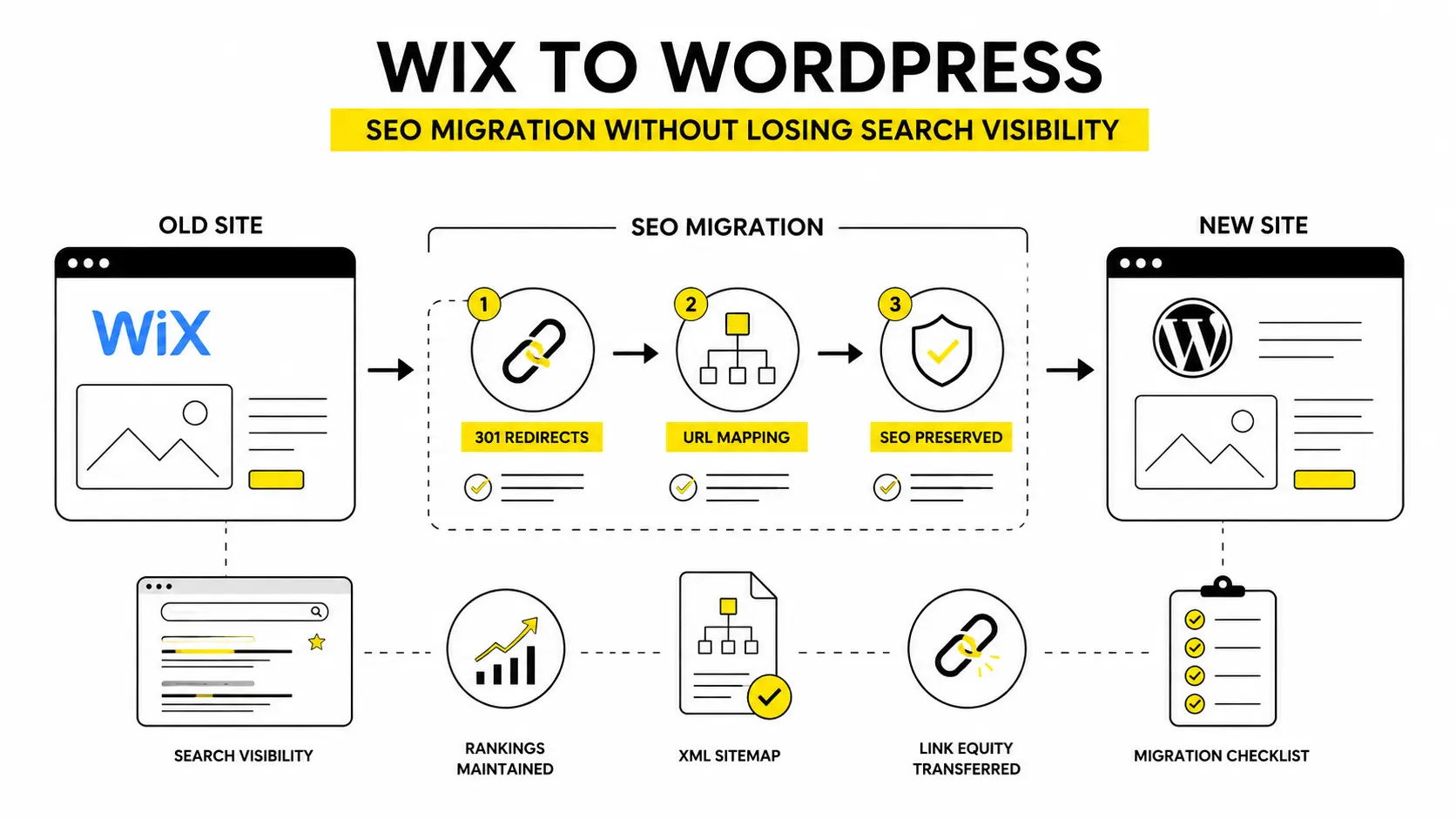
A Wix to WordPress SEO migration doesn’t have to mean losing your Google rankings. Most migrations don’t fail because WordPress is harder to use. They fail because someone skipped the redirect mapping, assumed the SEO plugin would “handle it,” or copied the content over and forgot the alt text existed at all. None of that is complicated once you know what to check. It’s just easy to miss if nobody tells you.
This checklist walks through what to do before, during, and after moving your site, plus a few things most guides on this topic don’t cover: how Wix’s own URL structure trips people up, why your Wix redirects stop working the moment you change DNS, what AI search crawlers need from your new site, and why your Google Business Profile matters here too.
The quick checklist
Use this as your master list. Each item is explained in detail below.
Before you build
- [ ] Export a baseline from Search Console (top pages, queries, indexed page count)
- [ ] Back up all Wix content: pages, blog posts, images, forms
- [ ] Check the Wix site for stray
noindextags, non-self-referencing canonicals and duplicate auto-generated pages - [ ] Map every old Wix URL to its new WordPress URL
Before you switch DNS
- [ ] Set up 301 redirects on the WordPress side and test them on staging
- [ ] Copy exact meta titles and descriptions from Wix
- [ ] Add structured data (Article, LocalBusiness, Breadcrumb)
- [ ] Remove any staging
noindextag and checkrobots.txt
At and after launch
- [ ] Submit a fresh XML sitemap in Search Console
- [ ] Re-add alt text to every image
- [ ] Update internal links so they no longer point at old Wix URLs
- [ ] Update your Google Business Profile website link
- [ ] Reconnect GA4 and check the Page Indexing report weekly
- [ ] Review at 30, 60 and 90 days against your baseline
Contents
- Will you actually lose rankings?
- Start with an audit
- Map every Wix URL to its WordPress equivalent
- Set up the 301 redirects (and where they have to live)
- Bring your metadata and structured data over properly
- Technical SEO checklist for after launch
- Reconnect Search Console and GA4
- Don’t stop at Google
- Local SEO gets forgotten too often
- Protecting featured snippets
- Mistakes that actually cause traffic drops
- How long recovery actually takes
- Timeline and cost, realistically
- What to check at 30, 60, and 90 days
- Frequently asked questions
Will you actually lose rankings?
Not automatically. Rankings drop after this kind of migration when 301 redirects are missing, metadata doesn’t transfer, or Google can’t figure out how the new site maps to the old one. Handle those three things properly and most sites see their rankings hold steady, or dip briefly and recover within a couple of months.
Start Your Wix to WordPress SEO Migration With an Audit
Wix doesn’t give you a clean full-site export, so back up your content manually: page text, blog posts, images, forms, whatever you’d hate to lose. Blog posts can usually be pulled through Wix’s RSS feed and imported with the WordPress importer, but pages, images and formatting generally need to be rebuilt or moved with a tool. Do all of this before you start building anything in WordPress.
While your Wix site is still live, pull your current SEO numbers from Search Console. Which pages get the most organic traffic? Which keywords are actually ranking? Note your indexed page count too. This becomes your baseline, and you’ll want it later to check whether the migration actually worked.
Check your backlink profile as well. If an external site links to a page that 404s after migration, that’s link equity gone for nothing.
A few things worth checking on the Wix side before you touch anything:
- Pages accidentally set to
noindexin the Wix SEO panel (more common than people expect) - Canonical tags that aren’t self-referencing
- Duplicate content from Wix’s auto-generated category or tag pages
Map every Wix URL to its WordPress equivalent
This is the part people underestimate. Wix uses its own URL patterns, and if you don’t account for them, your redirects will quietly fail even though you set them up. <!– VERIFY: confirm these Wix URL patterns against current Wix behavior, especially the blog category path. –>
| Wix URL pattern | What it’s for | Typical WordPress equivalent |
|---|---|---|
/post/page-name | Blog posts | /post/page-name/ (if you keep the prefix) or /blog/page-name/ |
/blog/categories/category-name | Blog category archive | /category/category-name/ |
/product-page/item-name | Wix Stores products | /product/item-name/ (WooCommerce) |
/blank, /blank-1 | Auto-generated placeholder pages | Usually deleted, no redirect needed |
/services-1, /about-1-c1cd | Wix’s auto-appended IDs | Clean, readable WordPress slug |
Option A: keep your blog URLs identical
Wix blog posts live under /post/. In WordPress you can set a custom permalink structure for posts so the URLs stay exactly the same:
- In WordPress, go to Settings → Permalinks.
- Choose Custom Structure and enter
/post/%postname%/. - Make sure each post’s slug matches its old Wix slug.
Your blog URLs then need no redirects at all. Non-blog Wix pages have no prefix, so giving them the same slug on WordPress keeps those URLs identical too. Redirects are only needed for pages whose URL changes (for example Wix’s auto-appended IDs, or products moving to WooCommerce).
Build the mapping spreadsheet
Create a spreadsheet with every URL on the site. Use these columns:
old_wix_url, new_wordpress_url, action, status_code, tested
/post/my-first-post, /post/my-first-post/, keep URL, 200, yes
/services-1, /services/, 301 redirect, 301, yes
/blank-1, , remove, 410, yes
Pages you’re not keeping should return a 410 (or a 404), not a redirect to your homepage. Redirecting everything to the homepage is one of the more common mistakes here, and Google reads it as a soft 404.
Set up the 301 redirects
Skip this and every backlink your Wix site earned stops counting for anything the moment you switch.
Where your redirects have to live
Wix’s URL Redirect Manager only works while your domain still points to Wix. The moment you switch DNS to your WordPress host, Wix stops handling requests, so every redirect has to already exist on the WordPress side before you change DNS. Build and test them on staging first. <!– VERIFY: confirm against current Wix documentation that Wix redirects stop applying once DNS no longer points to Wix. –>
On the WordPress side, the Redirection plugin handles most of this. Import your mapping spreadsheet, and for anything with a repeating pattern, use a regex rule instead of adding URLs one at a time. Rank Math’s redirection module or server-level rules (.htaccess or Nginx) work too.
Watch for these while testing:
- Redirect chains, where A goes to B which then goes to C, instead of A going straight to C
- Redirect loops
- Everything dumped onto the homepage instead of the matching page
- Image URLs left unredirected, even though they were indexed in Google Images
Test each redirect by hand or run a crawler over the site before calling the migration done. “My redirects aren’t working” is one of the most common complaints after this kind of move, and it’s usually one of the four issues above, or redirects that were only ever created inside Wix.
Bring your metadata and structured data over properly
Copy your exact meta titles and descriptions from Wix. Don’t let a WordPress SEO plugin auto-generate new ones the moment you activate it. That’s a fast way to lose the click-through rate you’d already built up.
This is also a good moment to add structured data that Wix probably never gave you full control over:
- Article schema for blog posts
- LocalBusiness schema if you serve a specific area
- Breadcrumb schema to reinforce your site structure in search results
- FAQ schema for FAQ sections. It helps search engines understand the page, but don’t count on a rich result: Google now shows FAQ rich results only for a narrow set of sites
Rank Math and Yoast both handle this without needing custom code.
Technical SEO checklist for after launch
- [ ] Generate a fresh XML sitemap and submit it in Search Console
- [ ] Check
robots.txtisn’t accidentally blocking pages you need indexed - [ ] Confirm canonical tags are self-referencing across the site
- [ ] Turn on SSL and fix any mixed-content warnings
- [ ] Pick a preferred domain version (www or non-www) so you’re not running duplicates
- [ ] Re-add alt text to every image. Wix alt text does not carry over on its own
- [ ] Update internal links so none still point at old Wix URLs
- [ ] Compress images and check Core Web Vitals with Google PageSpeed Insights
Reconnect Search Console and GA4
Verify ownership again in Google Search Console if anything about the domain setup changed. Submit your new sitemap as soon as the site is live. Your old Wix sitemap will disappear once DNS moves, so if you want Google to re-crawl the old URLs and discover the redirects faster, temporarily submit a simple sitemap listing the old URLs from your mapping sheet, then remove it once they’ve dropped out of the index.
Reconnect GA4 with a plugin like Site Kit or MonsterInsights, and check the Page Indexing report weekly for the first month. You want to see new URLs getting indexed and old ones dropping off gradually, not just vanishing overnight with no explanation.
Don’t stop at Google
A lot of migration checklists end at Search Console. But your new site also needs to be readable by whatever’s powering ChatGPT, AI Overviews, and AI Mode.
- Keep your heading structure clean (H1 down to H2, H3). AI systems lean on that hierarchy to pull answers out of a page.
- Double-check your structured data survived the move intact. Broken schema can stop search engines from understanding your pages properly. Google Search Central has the official documentation for crawling, indexing and structured data.
- Review your new
robots.txtso you haven’t accidentally blocked AI crawlers you want.GPTBotis OpenAI’s training crawler, whileOAI-SearchBotis the one tied to ChatGPT search results.Google-Extendedcontrols whether your content is used for Gemini, and doesn’t affect normal Google Search or AI Overviews. - Optionally, add an
llms.txtfile pointing to your key content. Treat it as a low-effort extra, not a requirement, since AI platforms haven’t broadly confirmed they use it.
Want the full version? See how to keep AI search citations after a website migration.
Local SEO gets forgotten too often
If your Wix site was doing any local search work, a sloppy migration can hurt that quietly, without showing up in your organic traffic numbers right away.
- Update the website link in your Google Business Profile once WordPress is live.
- Keep your name, address and phone number identical across the new site, your profile listing, and any directories you’re listed in.
- Carry over any LocalBusiness schema and location pages exactly as they were, since that’s often what’s actually holding your local rankings up.
Need help with this side of it? Our local SEO services in Delhi cover migrations as well.
Protecting featured snippets
If a Wix page was winning a featured snippet, a formatting change during migration can knock it out without warning.
- Keep the direct-answer sentence right under the heading that was triggering the snippet.
- Preserve the exact list, table or bullet formatting Google was pulling from.
- Check snippet ownership again two or three weeks after launch, since changes aren’t always immediate.
Mistakes that actually cause traffic drops
Missing or broken 301 redirects top the list, by a wide margin. After that:
- Redirects created only inside Wix, which stop working once DNS points to WordPress
- A
noindextag left on from the staging phase and never removed before launch - Old Wix pages staying live and creating duplicate content
- Internal links still pointing at old Wix URLs
- Mobile layouts breaking, because Wix uses absolute positioning while WordPress themes are built responsive, so a rushed copy-paste job can look fine on desktop and fall apart on a phone
One more: don’t cancel your Wix subscription or let your domain lapse the week you launch. Keep the Wix site active for a few weeks so you can roll back, compare pages and export anything you missed. It will not keep your redirects running once DNS has moved. If your domain is registered through Wix, plan the domain transfer or DNS change deliberately. <!– VERIFY: confirm Wix’s current domain transfer rules and any transfer lock before publishing this sentence. –>
If you’re redesigning rather than switching platforms, our website redesign SEO checklist covers the overlapping steps.
How long recovery actually takes
Small fluctuations in the first week or two are normal and not worth panicking over. If the redirects and technical SEO were handled correctly, most sites settle within four to eight weeks, and are fully recovered within two to three months. Some rank better than before thanks to WordPress’s technical flexibility. Bigger sites with a heavier backlink profile can take longer.
Timeline and cost, realistically
| Site size | Typical timeline | What eats the time |
|---|---|---|
| Small (under 20 pages) | 4–8 hours | Manual content copy, basic redirects |
| Business site (20–50 pages) | 2–4 days | Page rebuilding, forms, redirect mapping |
| Content-heavy or e-commerce | 1–2 weeks or more | WooCommerce setup, bulk redirects, testing |
What to check at 30, 60, and 90 days
- First two weeks: check Search Console daily for crawl errors and 404s, and fix them as they show up rather than batching them.
- Day 30: compare indexed pages, keyword rankings and traffic against the baseline you pulled before migrating.
- Day 60: look at Core Web Vitals and mobile usability.
- Day 90: rankings should be back to normal or close to it. If they’re not, go looking for a missed redirect or leftover duplicate content before assuming something bigger is wrong.
Frequently asked questions
Will I lose SEO if I move from Wix to WordPress?
Not if the 301 redirects are set up properly and your metadata, URL structure and content carry over. Most of the damage people see comes from skipped steps, not the platform switch itself.
How do I preserve my Wix URLs in WordPress?
Map every old Wix URL to its new WordPress equivalent in a spreadsheet first. For blog posts, you can keep the same URLs by setting a custom permalink structure of /post/%postname%/. For any URL that changes, set up a 301 redirect from the old address.
Do my Wix redirects still work after I switch to WordPress?
No. Wix redirects only run while your domain points to Wix. Once DNS points to your WordPress host, the redirects have to be set up on the WordPress side (Redirection plugin, Rank Math or server rules).
Do I need to submit a new sitemap after migrating from Wix to WordPress?
Yes. Generate a fresh XML sitemap in WordPress and submit it in Search Console as soon as the site goes live.
Why did my Google rankings drop after migrating from Wix to WordPress?
Usually one of these: missing redirects, a leftover noindex tag, broken internal links, or duplicate content from the old Wix pages still being accessible.
How long does SEO recovery take after moving from Wix to WordPress?
Roughly four to eight weeks to stabilize, with fuller recovery in two to three months if the migration was handled properly.
Do I need to change robots.txt after migrating from Wix to WordPress?
Yes. Review it so important pages aren’t blocked, and make sure it points to your new XML sitemap.

Leena Kalyana is an SEO and digital marketing consultant in Delhi NCR and the founder of LeeGrowth. She helps clinics, coaching institutes, consultants and small businesses get found on Google, Google Maps and AI search. She works directly with every client and does not guarantee rankings.