


Written by the Lee Growth team. Last updated September 2026.
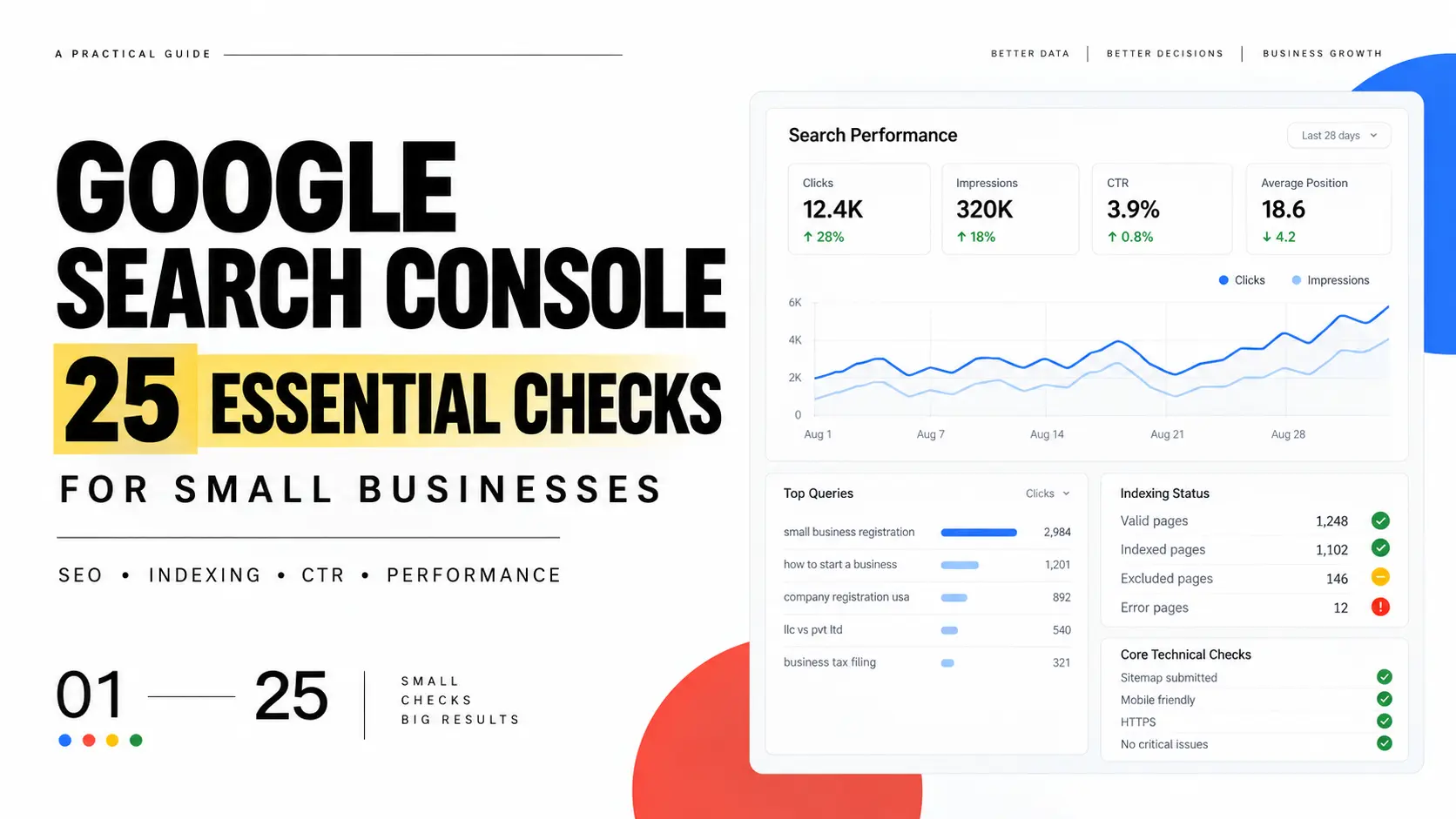
Quick answer: Google Search Console is a free tool from Google that shows how your website performs in Google Search: the terms people searched before landing on your site, which pages Google has indexed, how fast your pages load, and where technical problems are limiting your visibility. This guide walks small business owners through the 25 checks that actually matter, what each one tells you, and what to do when something looks wrong.
Key Takeaways
- Google Search Console is free, and every business with a website should have it connected.
- Clicks, impressions, CTR, and average position are your four core metrics. Compare them across time periods, not single days.
- Pages ranking in positions 4 to 20 are usually your fastest, lowest effort ranking wins.
- Not every “not indexed” page or 404 is a problem. Many are meant to be excluded.
- A short weekly check, a deeper monthly review, and a quarterly step back is enough for most small businesses.
Table of Contents
What Is Google Search Console?
Search Console shows the exact words people searched before finding your site, which pages Google has indexed, whether your site has technical or security problems, and how it performs on mobile versus desktop. It does not track what visitors do once they land on your site (that’s Google Analytics), and it’s completely free to set up. You don’t need a developer, though some of the issues it surfaces will need technical help to fix. Google’s own introduction to Search Console covers the full range of what it does.
How to Set Up Google Search Console
- Go to Google Search Console and sign in with a Google account.
- Click “Add Property” and enter your website address.
- Choose a Domain property or a URL prefix property (explained below).
- Verify ownership using the method Google offers: a DNS record through your domain host, an uploaded file, or an existing Google Tag Manager or Analytics account.
- Submit your sitemap (Check 13) under Indexing > Sitemaps.
- Confirm your homepage and key pages are reachable and not accidentally hidden from Google.
- Give it a few days to a couple of weeks before expecting useful data. Reports run on a delay.
Domain property vs. URL prefix property
A domain property covers everything under your domain, including subdomains and both http and https versions, in one view. It requires DNS verification through your domain host. A URL prefix property covers only the exact address you enter, for example https://www.yoursite.com. It’s easier to verify but gives you a narrower slice of data. For most small businesses with a single domain, either works. If you run a subdomain or your site mixes www and non-www versions, a domain property gives you the full picture.
The 25 Google Search Console Checks Every Small Business Should Make
| # | Check | Why it matters |
|---|---|---|
| 1 | Total clicks | Your best measure of real visitors from Google |
| 2 | Total impressions | How often your site is being shown in search results |
| 3 | Click through rate (CTR) | Whether people click your listing when they see it |
| 4 | Average position | Whether your ranking is trending up or down |
| 5 | Top search terms | What people are already searching to find you |
| 6 | Top performing pages | Which pages deserve your attention and protection |
| 7 | Pages ranking in spots 4 to 20 | Your biggest quick win opportunity |
| 8 | Pages seen often but rarely clicked | Pages losing clicks they’ve already earned |
| 9 | Which pages are indexed | Whether your key pages can show up in search |
| 10 | “Crawled: Currently Not Indexed” | A sign of thin or duplicate content |
| 11 | “Discovered: Currently Not Indexed” | Usually a crawl priority issue, not a quality one |
| 12 | Checking one page directly | For fixing or confirming the status of a specific page |
| 13 | Your sitemap | Whether Google can easily find your pages |
| 14 | Broken pages (404 errors) | Pages that no longer exist but may still get visitors |
| 15 | Redirect problems | Pages sending visitors the wrong way, or in circles |
| 16 | Core Web Vitals | How fast and stable your pages feel to real visitors |
| 17 | HTTPS | Whether the secure version of your site is the one Google shows |
| 18 | Mobile experience | Whether your site actually works well on phones |
| 19 | Structured data and rich results | Whether your markup can earn enhanced search listings |
| 20 | Manual actions | Whether Google has flagged your site for a policy violation |
| 21 | Security issues | Malware, hacking, or scam page warnings |
| 22 | Performance over time | Telling a real trend apart from normal ups and downs |
| 23 | Pages losing traffic | Where and why visits are dropping |
| 24 | New keyword ideas | Content ideas straight from real searches |
| 25 | A regular check up routine | Turning all of this into a repeatable habit |
1. Check Total Clicks
Clicks are the number of times someone clicked from a Google search result to your site. It’s the closest thing Search Console has to an actual visitor count. Find it under Performance > Search Results.
Compare clicks across time periods, not single days. The last 28 days against the previous 28 tells you far more than yesterday’s number. Rising clicks is a good sign, but not the whole story: 500 clicks a month from “free SEO templates” may convert worse than 100 clicks from “SEO consultant near me.” Look at clicks alongside which pages and terms are driving them.
2. Check Total Impressions
Impressions count every time a page showed up in a search result, whether or not anyone clicked it. It’s a rough measure of visibility.
Impressions can rise without clicks rising for a few reasons: you’re ranking for more terms but further down the page, a page dropped position, or your listing is now competing with an AI generated summary above it. If impressions climb while clicks stay flat, that usually points to a CTR problem (Check 3), not a visibility problem.
3. Check Click Through Rate (CTR)
CTR is clicks divided by impressions. It depends heavily on position (the top spot pulls a much higher CTR than eighth) and on intent (a branded search converts to clicks far more than a broad, competitive term).
There’s no universal “good” CTR. Judge it against similar terms and positions on your own site. Your title and meta description are the two levers you control that most affect CTR: a title that clearly states what the page offers, and a description that gives someone a reason to click you over the other results. Sort the Performance report by impressions and scan for rows where CTR looks low compared to similar pages.
4. Check Average Position
Average position is the average ranking spot for a page or term across every search where it appeared, over the date range selected. It’s not one fixed rank. A page showing position 6 might actually rank anywhere from 2 to 15 depending on wording, location, or device.
Don’t obsess over a single move from 5.2 to 5.8. Use it instead to find terms sitting just outside page one, which is one of the most useful things this metric can show you (see Check 7).
5. Find Your Top Search Terms
The Queries tab under Performance shows every term that triggered an impression or click. Sort by clicks to see what’s working, by impressions to see what you’re visible for but not winning clicks on. Look for terms with high impressions and low CTR, and terms where you rank on page one or two but get few clicks.
This is one of the best free sources of content direction available to a small business. If people search “how much does SEO cost in Delhi” and your site shows impressions for that phrase but almost no clicks, that’s a real signal about what your audience wants answered.
6. Find Your Best Performing Pages
The Pages tab ranks your URLs by clicks and impressions. Pages with strong impressions, clicks, and CTR are your current workhorses: keep them updated, link to them internally, and treat any drop as worth investigating. Pages with high impressions but weak CTR or position are your improvement candidates. Pages with almost no impressions may simply not match real search demand, or may have an indexing problem worth checking separately.
7. Find Pages Ranking in Positions 4 to 20
How to check it: Open Performance > Queries, sort by average position, and scan for rows between roughly 4 and 20. Click into each term and check which page it’s tied to under the Pages tab.
Example: “SEO audit for small business” sits at position 9 with steady impressions but few clicks.
What it means: Google already trusts this page enough to rank it, just not high enough for much traffic. That’s a different, easier problem than ranking a brand new page from nothing.
What to do: Strengthen the content, add internal links, tighten the title to match what people actually type, make sure the page fully answers the query, cover the topic more completely than the pages currently outranking you, and earn a few relevant backlinks over time. None of this guarantees a jump, but it’s usually the most efficient place to spend limited time, since the groundwork is already partly done.
8. Find Pages That Get Seen a Lot but Rarely Clicked
How to check it: Open Performance > Pages, sort by impressions, and scan the CTR column for rows that look low compared to similarly ranked pages. Click into a low CTR page and check the Queries tab to see which searches are showing it but not clicking it.
Example: A page gets 12,000 impressions over 28 days, ranks positions 6 to 10, but earns only 95 clicks, under 0.8% CTR, low even for a mid page ranking.
What to check, in order: Is the title vague? Does the description give someone a reason to click? Is there an intent mismatch (a service page for a query that wants a guide, or the reverse)? Is the position itself the constraint, with reviews or images crowding the results above it? Is an ad or AI generated summary pulling clicks away regardless of listing quality?
What to do: Rewrite the title and description first, since that’s the lever you fully control, then reassess CTR after 3 to 4 weeks before changing anything else.
9. Check Which Pages Are Indexed
Indexing means Google has crawled a page and added it to the index it serves results from. A page generally needs to be indexed to appear in Google’s organic search results. Find this under Indexing > Pages, which splits your URLs into indexed and excluded, with a reason for each excluded group.
Not every excluded URL is a problem. Thank you pages, internal search pages, duplicate parameter URLs, and pages you’ve deliberately marked “noindex” are supposed to be excluded. The goal isn’t 100% indexing; it’s making sure the pages meant to bring in traffic are indexed and healthy.
10. Investigate “Crawled: Currently Not Indexed”
This means Google visited the page but decided, for now, not to index it. Take it seriously when it hits a page you care about.
Common causes: thin content that doesn’t say enough to stand alone, near duplicate content elsewhere on your site or the web, weak internal linking that signals low importance, or a straightforward quality judgment.
What to do: Expand and improve the content, add internal links from relevant, already indexed pages, check for near duplicates, and give it time after real changes. Requesting indexing again isn’t a fix by itself; if the underlying issue isn’t addressed, the page tends to cycle back to the same status.
11. Investigate “Discovered: Currently Not Indexed”
This is different from “Crawled: currently not indexed.” Discovered means Google knows the URL exists, usually from your sitemap or a link, but hasn’t crawled it yet. This status doesn’t necessarily indicate a quality problem; it’s often a crawl priority issue, and Google may simply not have gotten to the page yet. “Crawled: currently not indexed” is closer to an actual quality or duplication signal.
If a page sits in “Discovered” for a long time, check whether it’s buried deep in your site structure, whether your site has an unusually large number of low value URLs competing for crawl attention, or whether the page loads slowly. Strengthening internal links from higher authority pages is usually the most direct fix.
12. Use URL Inspection on Important Pages
The URL Inspection tool checks the status of one specific URL. Paste a full URL into the search bar at the top of Search Console to see whether it’s indexed, when it was last crawled, and any flagged issues.
If a page isn’t indexed and you believe it should be, use “Request Indexing” from this screen, useful after publishing something new or fixing a real problem. It won’t fix a page with a genuine content or quality issue no matter how often you request it.
13. Check Your XML Sitemap
A sitemap lists the URLs you want Google to know about. It doesn’t guarantee indexing, but it speeds up discovery. Submit it under Indexing > Sitemaps using the full address (commonly yoursite.com/sitemap.xml). See Google’s guide to building and submitting a sitemap if you need to build one.
Common problems: listing URLs that redirect elsewhere, that are blocked by robots.txt, marked “noindex,” or duplicate parameter URLs. Only include canonical, indexable URLs you actually want in search results.
14. Check for 404 and Other Page Errors
A 404 means the URL doesn’t exist on your server, which is normal for deliberately removed pages or mistyped links. It becomes an issue when a page that used to rank, or one that other sites still link to, now returns a 404 with real traffic landing on it.
For content you’ve actually removed with no replacement, a clean 404 is the honest response. Redirects make sense when there’s a clear, relevant replacement, like a discontinued product page redirecting to its current version. Redirecting old, irrelevant pages to your homepage “just in case” usually hurts the user experience more than it helps.
15. Check Redirect Issues
Watch for redirect chains (A to B to C before the real page), redirect loops (A to B back to A), incorrect redirects to unrelated content, HTTP versions not cleanly redirecting to HTTPS, and old URLs redirecting to a generic homepage instead of their closest current equivalent. The fix is nearly always the same: point redirects directly at the final, most relevant destination in a single hop.
16. Check Core Web Vitals
Three metrics make up Core Web Vitals: LCP (how long the main content takes to become visible), INP (how responsive the page feels when tapped, which replaced the older FID metric in 2024), and CLS (how much content unexpectedly shifts while loading).
Find this under Experience > Core Web Vitals. Google groups URLs with similar performance, so a report can show “Poor” for a group that includes pages you know load fine. Page experience is one ranking input among many, not the deciding factor: a slow site with strong, relevant content can still outrank a fast site with thin content. Still, a truly poor experience, especially on mobile, is worth fixing for the sake of real visitors.
17. Check HTTPS
HTTPS has been baseline for years, not optional. A few things to confirm:
- HTTPS itself works correctly on your key pages.
- HTTP URLs redirect cleanly to their HTTPS equivalents, site wide.
- There’s no mixed content: HTTPS pages shouldn’t load images, scripts, or other resources over plain HTTP.
- Your canonical URLs use HTTPS.
- Your important pages are reachable over HTTPS without errors.
If your site’s Security Issues report (Check 21) is clean and your canonical URLs are consistently HTTPS, this check is usually a quick confirmation rather than a deep investigation.
18. Check Your Site’s Mobile Experience
Most searches happen on mobile, so a page that’s hard to use there loses customers even if it ranks well. Check the Core Web Vitals report (Experience > Core Web Vitals) for real mobile performance data, and use Google’s free PageSpeed Insights for a detailed audit covering tap targets, readability, and layout.
A manual check helps too: open key pages on an actual phone and confirm there’s no horizontal scrolling, buttons are easy to tap, and text is readable without zooming. Note: the standalone Mobile Usability report and the old Mobile Friendly Test tool were retired in December 2023, so mobile checks now live in Core Web Vitals and PageSpeed Insights.
19. Check Structured Data and Rich Result Issues
Structured data is code that describes a page’s content in a format search engines can parse directly, such as marking a page as an Article, Product, or Organization. It makes a page eligible for a rich result (stars, prices, extra formatting), not guaranteed one. Find eligible enhancements and errors under the Enhancements section.
As of 2026, common types still producing rich results include Article, Breadcrumb, Product, Organization, Review, Video, and Recipe. Two are worth flagging: FAQ rich results were phased out entirely as of May 2026, and HowTo rich results were deprecated back in 2023. The underlying schema is still valid to keep on your pages, but don’t add either expecting a visible search appearance boost.
20. Look for Manual Actions
A manual action is a measure Google applies when a human reviewer determines that a site or page violates Google’s Search Essentials guidelines, such as unnatural links, thin or spammy content, or cloaking. Find it under Security & Manual Actions > Manual Actions.
For most small businesses running a normal site, this section simply says “No issues detected.” If one does appear, it names the specific violation and affected pages. Fix the underlying issue, then submit a reconsideration request through the same screen.
21. Check Security Issues
This report flags malware, hacked content, or deceptive pages Google’s systems detected. Find it under Security & Manual Actions > Security Issues. A compromised site can lose visibility fast, and in serious cases Google shows visitors a warning before they even click through.
If an issue appears, address the underlying compromise first, often with a developer or your host’s security team, then use “Request Review” once it’s actually resolved.
22. Compare Your Search Performance Over Time
Compare custom date ranges under Performance regularly rather than only checking the latest snapshot: last 7 days against the previous 7, last 28 against the previous 28, and once you have a year of data, the same period year over year. A seasonal business, a coaching institute around admission season, a retailer around a festival, will see impressions and clicks swing with demand that has nothing to do with SEO performance. Comparing against the right prior period keeps you from reacting to noise.
23. Find Pages Losing Organic Traffic
How to check it: Open Performance > Pages, turn on “Compare,” and set it to the current 28 days against the previous 28 (longer if your business is seasonal). Sort by the clicks change column.
Example: A page that used to bring 40 clicks a month now brings 12, with impressions down too.
What to check, in order: Has its average position for the main query actually dropped? Has search demand for the topic fallen? Is a competitor now outranking it with stronger content? Has the page gone stale? Is there a technical problem, like a broken internal link or an accidental noindex tag? Has Google’s read on the query’s intent shifted?
What to do: Fix whichever cause the data points to. Don’t default to blaming “an algorithm update” first; that’s usually the last box to check, once position, indexing, and content freshness are ruled out.
24. Find New Keyword Opportunities
How to check it: Open Performance > Queries and scan for four patterns: terms with impressions but no dedicated page addressing them well, related terms hinting at a subtopic, terms with decent impressions but very few clicks, and terms where you rank reasonably but the page doesn’t fully answer the query.
Example: Your service page ranks for “SEO consultant Delhi,” but the query list also shows repeated impressions for “SEO consultant pricing Delhi,” a phrase the page never addresses.
What it means: A real content gap. Pricing searchers are often more ready to buy than general searchers, and the current page isn’t written for them.
What to do: Add a section to the existing page, add a short Q&A, publish a dedicated new page for a truly distinct topic, or add internal links to help new content gain traction. Pairing this with a dedicated SEO tool for keyword research fills in the terms you have no visibility for yet.
25. Check Your Overall SEO Health Regularly
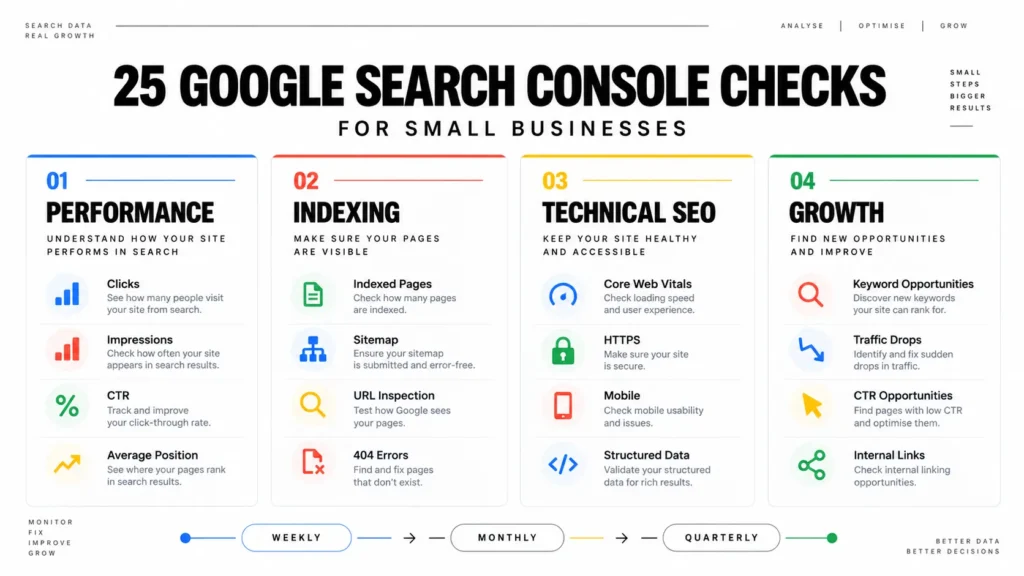
Weekly: scan for major indexing problems, check Security Issues and Manual Actions, glance at sudden traffic changes, and check performance on your most important pages.
Monthly: review top queries and pages, look for CTR opportunities, check the position 4 to 20 list, identify declining pages, and confirm sitemap, indexing, and Core Web Vitals are healthy.
Quarterly: refresh stale content, review site structure and internal linking, and reassess whether search intent for your key topics has shifted.
Coaching and consulting businesses tend to see distinct search behavior worth planning around separately; our guide to SEO for coaches and consultants covers that. Local and multi-location businesses have their own version of these checks too, covered in our local SEO services overview.
Google Search Console Checklist for Small Businesses
- Check clicks, impressions, CTR, and average position
- Review top queries and top pages
- Find positions 4 to 20 and high-impression, low-CTR pages
- Review indexing status and excluded URLs
- Check the sitemap and inspect key URLs individually
- Check for 404s and redirect issues
- Check Core Web Vitals, HTTPS, and mobile experience
- Review structured data and rich result eligibility
- Check manual actions and security issues
- Compare performance across periods and review pages losing traffic
- Find new keyword opportunities and internal linking gaps
- Refresh older content
- Repeat this list monthly
How Often Should You Check Google Search Console?
Weekly for anything urgent, monthly for the real work, quarterly to step back and reassess content and structure. The full breakdown is in Check 25 above. Businesses actively publishing or making frequent site changes benefit from checking more often, since new pages and changes need to be verified rather than assumed to be working.
Google Search Console vs Google Analytics
| Area | Google Search Console | Google Analytics |
|---|---|---|
| Search visibility and queries | Yes | No |
| Clicks from Google Search | Yes | Only as a traffic source, without query detail |
| On-site behavior (time on page, navigation) | No | Yes |
| Conversions | No | Yes, with goals or events set up |
| Traffic sources beyond Google organic | No | Yes (social, direct, referral, paid) |
| Indexing and technical SEO issues | Yes | No |
Search Console shows how people find you through Google Search. Analytics shows what they do after they reach your website. Most businesses need both.
Frequently Asked Questions
Is Google Search Console free? Yes, with no paid tier or usage limit for standard use.
What should I check first? Start with the Performance report for clicks, impressions, and top queries, then confirm your important pages are indexed under Indexing > Pages.
Why are my pages not indexed? Common reasons include thin or duplicate content, weak internal linking, an accidental “noindex” tag, or Google simply not having crawled the page yet. Check the specific reason listed before assuming the cause.
What is a good CTR? There’s no single number. CTR depends heavily on position and search intent, so compare it against similar queries and positions on your own site.
Does requesting indexing guarantee my page will be indexed? No. It asks Google to recrawl sooner, but indexing still depends on Google’s own quality and relevance judgment.
Is Google Search Console enough for SEO on its own? It’s essential but not complete. It covers visibility, indexing, and technical health well; pairing it with Analytics and your own keyword and competitor research gives a fuller picture.
Final Takeaway
A small business doesn’t need to stare at every report daily. It needs a repeatable system: a weekly glance for anything urgent, a monthly review for opportunities and problems, and a quarterly step back to reassess content and structure. The 25 checks above give you that system in one place.
If your site needs a deeper audit or ongoing support, a free website SEO audit or working with an experienced SEO consultant can help you prioritize the fixes that matter most for your business.
Sources
- Google Search Console, the official tool
- Search Console Help Center
- Google Search Central, Google’s developer and SEO documentation hub

I’m Leena Kalyana, a Delhi-based freelance digital marketer and graphic designer. I work across SEO, content marketing, social media, and digital design. I’m interested in helping businesses build a stronger online presence through practical SEO strategies, useful content, and creative digital marketing.