


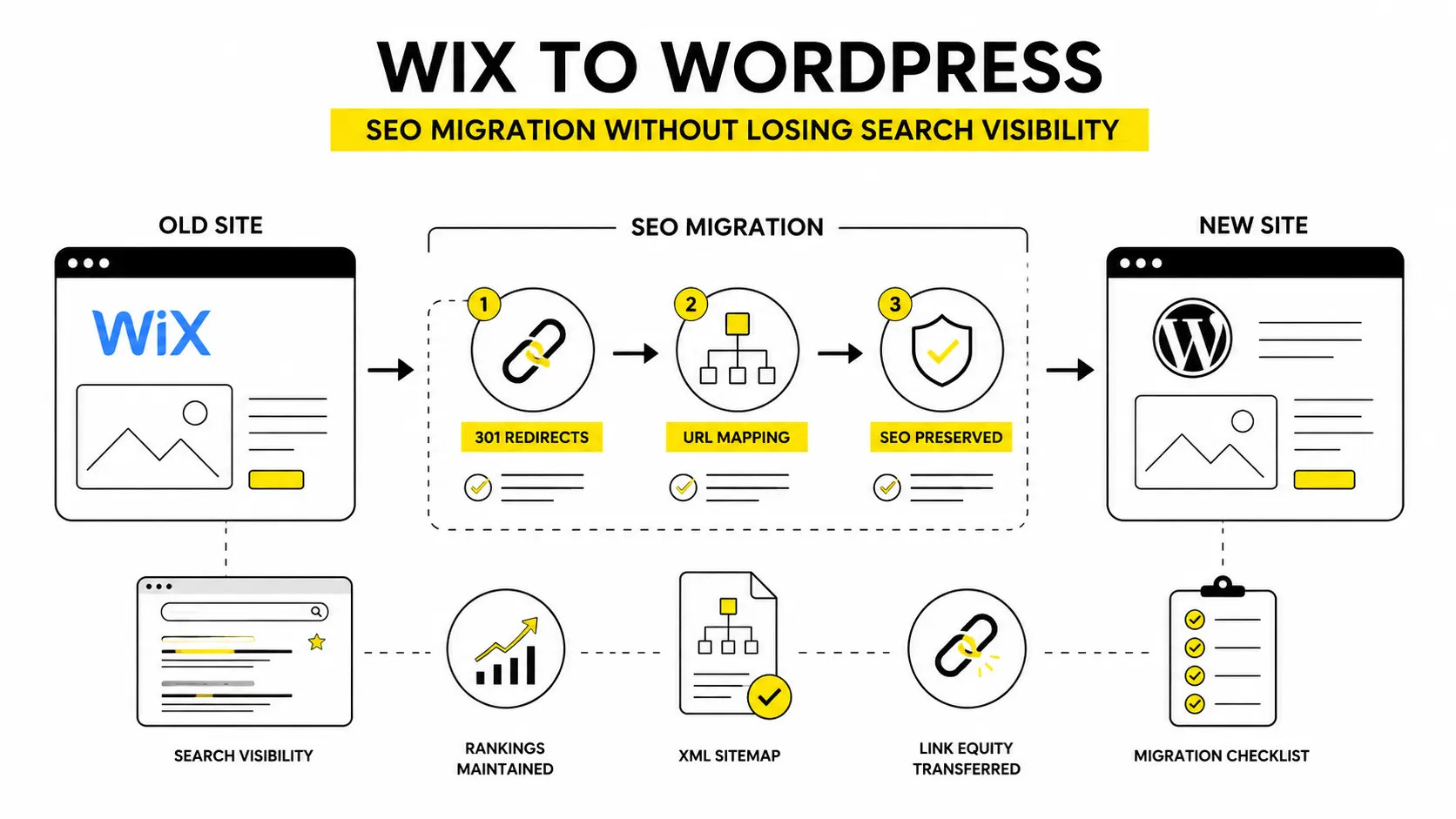
A Wix to WordPress SEO migration doesn’t have to mean losing your Google rankings. Most migrations don’t fail because WordPress is harder to use. They fail because someone skipped the redirect mapping, assumed the SEO plugin would “handle it,” or copied the content over and forgot the alt text existed at all. None of that is complicated once you know what to check. It’s just easy to miss if nobody tells you.
This checklist walks through what to do before, during, and after moving your site, plus a few things most guides on this topic don’t cover: how Wix’s own URL structure trips people up, what AI search crawlers need from your new site, and why your Google Business Profile matters here too.
Table of Contents
Will you actually lose rankings?
Not automatically. Rankings drop after this kind of migration when 301 redirects are missing, metadata doesn’t transfer, or Google can’t figure out how the new site maps to the old one. Handle those three things properly and most sites see their rankings hold steady, or dip briefly and recover within a couple of months.
Start Your Wix to WordPress SEO Migration With an Audit
Wix doesn’t give you a clean full-site export, so back up your content manually: page text, blog posts, images, forms, whatever you’d hate to lose. Do this before you start building anything in WordPress.
While your Wix site is still live, pull your current SEO numbers from Search Console. Which pages get the most organic traffic? Which keywords are actually ranking? Note your indexed page count too. This becomes your baseline, and you’ll want it later to check whether the migration actually worked.
Check your backlink profile as well. If an external site links to a page that 404s after migration, that’s link equity gone for nothing.
A few things worth checking on the Wix side before you touch anything:
- Pages accidentally set to noindex in the Wix SEO panel (more common than people expect)
- Canonical tags that aren’t self-referencing
- Duplicate content from Wix’s auto-generated category or tag pages
Map every Wix URL to its WordPress equivalent
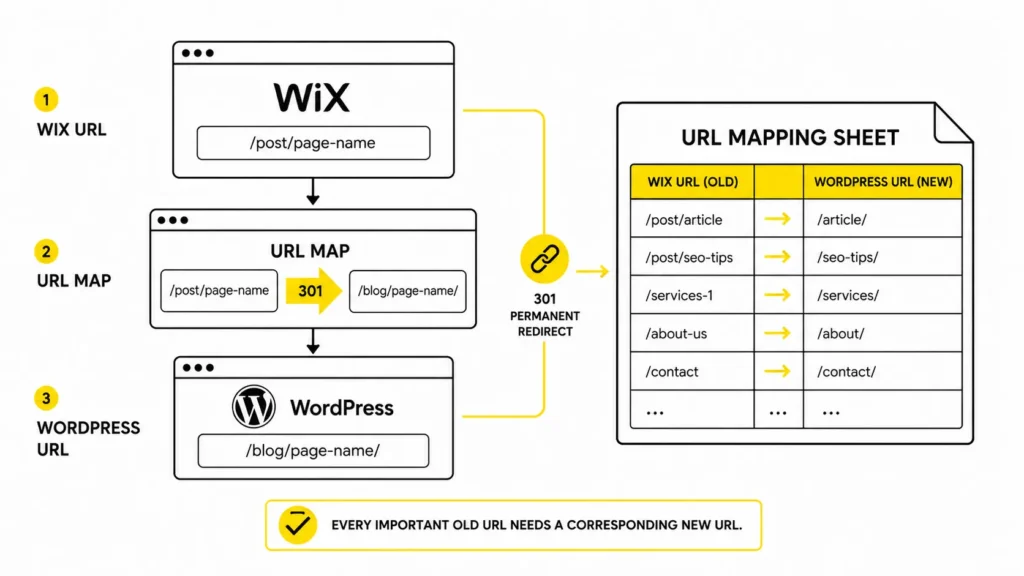
This is the part people underestimate. Wix uses its own URL patterns, and if you don’t account for them, your redirects will quietly fail even though you set them up.
| Wix URL pattern | What it’s for | Typical WordPress equivalent |
|---|---|---|
/post/page-name | Blog posts | /page-name/ or /blog/page-name/ |
/product-page/item-name | Wix Stores products | /product/item-name/ (WooCommerce) |
/category/category-name | Blog category | /category/category-name/ |
/blank or /blank-1 | Auto-generated placeholder pages | Usually deleted, no redirect needed |
/services-1, /about-1-c1cd | Wix’s auto-appended IDs | Clean, readable WordPress slug |
Build a spreadsheet with every URL on the site: old Wix URL, new WordPress URL, and status code. Pages you’re not keeping should get a 410, not a redirect to your homepage. Redirecting everything to the homepage is one of the more common mistakes here, and Google reads it as a soft 404.
Set up the 301 redirects
Skip this and every backlink your Wix site earned stops counting for anything the moment you switch.
In Wix, before you move: go to Marketing & SEO, then SEO Tools, then URL Redirect Manager, and create each redirect as 301 Permanent.
On the WordPress side, the Redirection plugin handles most of this. Import your mapping spreadsheet, and for anything with a repeating pattern (all the old /post/ URLs, for instance), use a regex rule instead of adding them one at a time.
Watch for these while testing:
- Redirect chains, where A goes to B which then goes to C, instead of A going straight to C
- Redirect loops
- Everything dumped onto the homepage instead of the matching page
- Image URLs left unredirected, even though they were indexed in Google Images
Test each redirect by hand or run a crawler over the site before calling the migration done. “My redirects aren’t working” is one of the most common complaints after this kind of move, and it’s usually one of the four issues above.
Bring your metadata and structured data over properly
Copy your exact meta titles and descriptions from Wix. Don’t let a WordPress SEO plugin auto-generate new ones the moment you activate it, that’s a fast way to lose the click-through rate you’d already built up.
This is also a good moment to add structured data that Wix probably never gave you full control over:
- Article schema for blog posts
- LocalBusiness schema if you serve a specific area
- FAQ schema for any FAQ sections
- Breadcrumb schema to reinforce your site structure in search results
Rank Math and Yoast both handle this without needing custom code.
Technical SEO checklist for after launch
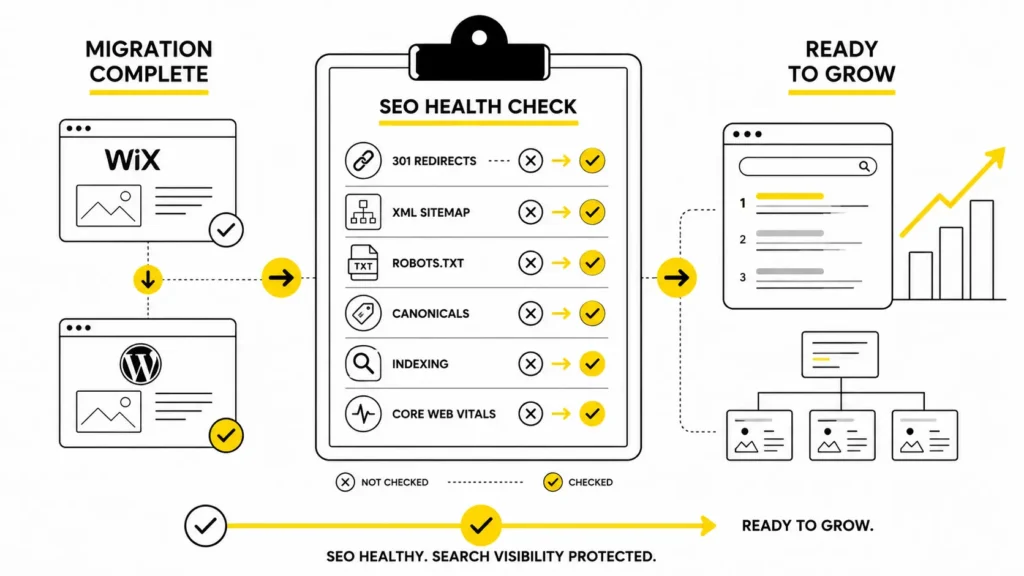
- Generate a fresh XML sitemap and submit it in Search Console
- Check robots.txt isn’t accidentally blocking pages you need indexed
- Confirm canonical tags are self-referencing across the site
- Turn on SSL and fix any mixed-content warnings that pop up
- Pick a preferred domain version (www or non-www) so you’re not running duplicates
- Re-add alt text to every image. Wix alt text does not carry over on its own
- Compress images and check Core Web Vitals using Google PageSpeed Insights.
Reconnect Search Console and GA4
Verify ownership again in Google Search Console if anything about the domain setup changed. Submit both your old sitemap and your new one, it helps Google connect the redirect mapping faster than waiting for a natural recrawl.
Reconnect GA4 with a plugin like Site Kit or MonsterInsights, and check the Page Indexing report weekly for the first month. You want to see new URLs getting indexed and old ones dropping off gradually, not just vanishing overnight with no explanation.
Don’t stop at Google
A lot of migration checklists end at Search Console. But your new site also needs to be readable by whatever’s powering ChatGPT, AI Overviews, and AI Mode.
Keep your heading structure clean (H1 down to H2, H3) since AI systems lean on that hierarchy to pull answers out of a page. If your hosting or theme supports it, add an llms.txt file pointing AI crawlers to your key content. Double-check your structured data survived the move intact, because broken schema can prevent search engines from properly understanding your pages. Google Search Central provides Google’s official documentation for crawling, indexing, structured data, and SEO best practices. Also look at your new robots.txt to make sure you haven’t accidentally blocked crawlers like GPTBot or Google-Extended.
Local SEO gets forgotten too often
If your Wix site was doing any local search work, a sloppy migration can hurt that quietly, without showing up in your organic traffic numbers right away.
Update the website link in your Google Business Profile once WordPress is live. Keep your name, address, and phone number identical across the new site, your GBP listing, and any directories you’re listed in. And carry over any LocalBusiness schema and location pages exactly as they were, since that’s often what’s actually holding your local rankings up.
Protecting featured snippets
If a Wix page was winning a featured snippet, a formatting change during migration can knock it out without warning.
Keep the direct-answer sentence right under the heading that was triggering the snippet. Preserve the exact list, table, or bullet formatting Google was pulling from. Then check snippet ownership again two or three weeks after launch, since it’s not always immediate either way.
Mistakes that actually cause traffic drops
Missing or broken 301 redirects top the list, by a wide margin. After that: leaving a noindex tag on from the staging phase and forgetting to remove it before launch, old Wix pages staying live and creating duplicate content, internal links still pointing at old Wix URLs, and mobile layouts breaking because Wix uses absolute positioning while WordPress themes are built responsive, so a rushed copy-paste job can look fine on desktop and fall apart on a phone.
One more: don’t cancel your Wix subscription the week you launch. Keep it active, even just parked, for at least two to four weeks so your redirects keep functioning while Google recrawls everything.
How long recovery actually takes
Small fluctuations in the first week or two are normal and not worth panicking over. If the redirects and technical SEO were handled correctly, most sites settle down within four to eight weeks and are fully recovered, sometimes ranking better than before thanks to WordPress’s technical flexibility, within two to three months. A properly planned Wix to WordPress SEO migration protects your existing rankings while giving you more flexibility with WordPress. Bigger sites with a heavier backlink profile can take longer.
Timeline and cost, realistically
| Site size | Typical timeline | What eats the time |
|---|---|---|
| Small (under 20 pages) | 4–8 hours | Manual content copy, basic redirects |
| Business site (20–50 pages) | 2–4 days | Page rebuilding, forms, redirect mapping |
| Content-heavy or e-commerce | 1–2 weeks or more | WooCommerce setup, bulk redirects, testing |
What to check at 30, 60, and 90 days
In the first two weeks, check Search Console daily for crawl errors and 404s, and fix them as they show up rather than batching them. At day 30, compare indexed pages, keyword rankings, and traffic against the baseline you pulled before migrating. At day 60, look at Core Web Vitals and mobile usability. By day 90, rankings should be back to normal or close to it. If they’re not, go looking for a missed redirect or leftover duplicate content before assuming something bigger is wrong.
Frequently Asked Questions
Will I lose SEO if I move from Wix to WordPress? Not if the 301 redirects are set up properly and your metadata, URL structure, and content carry over. Most of the damage people see comes from skipped steps, not the platform switch itself.
How do I preserve my Wix URLs in WordPress? Map every old Wix URL to its new WordPress equivalent in a spreadsheet first, then set up 301 redirects from each one.
Do I need to submit a new sitemap after migrating from Wix to WordPress? Yes. Generate a fresh XML sitemap in WordPress and submit it in Search Console as soon as the site goes live.
Why did my Google rankings drop after migrating from Wix to WordPress? Usually one of: missing redirects, a leftover noindex tag, broken internal links, or duplicate content from the old Wix pages still being accessible.
How long does SEO recovery take after moving from Wix to WordPress? Roughly four to eight weeks to stabilize, with fuller recovery in two to three months if the migration was handled properly.
Do I need to change robots.txt after migrating from Wix to WordPress? Yes. Review it so important pages aren’t blocked, and make sure it points to your new XML sitemap.

I’m Leena Kalyana, a Delhi-based freelance digital marketer and graphic designer. I work across SEO, content marketing, social media, and digital design. I’m interested in helping businesses build a stronger online presence through practical SEO strategies, useful content, and creative digital marketing.