


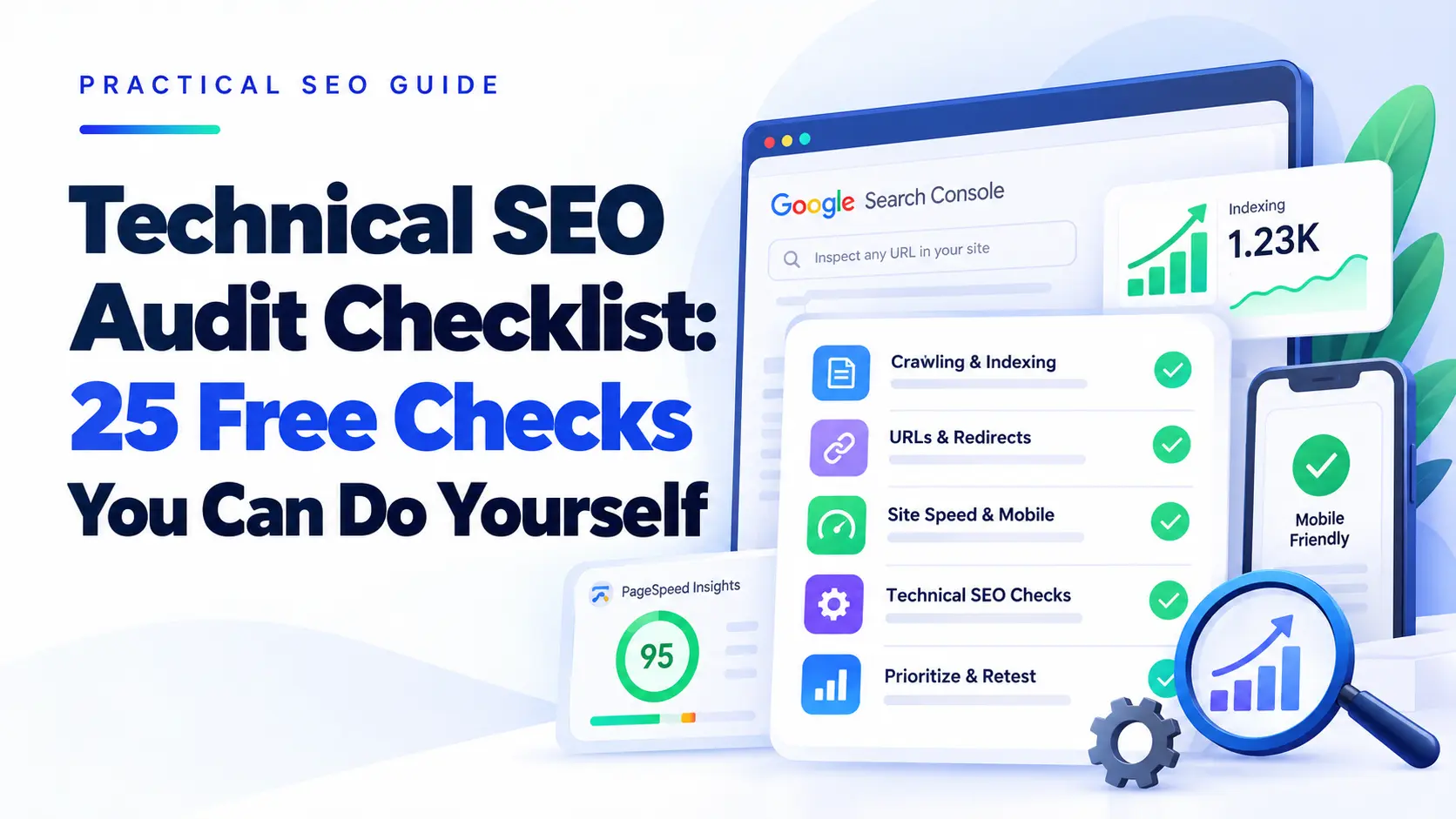
If a service page is missing from Google, a blog post keeps showing “Crawled – currently not indexed,” or Search Console reports URLs blocked by robots.txt, do not change random SEO settings. First, find out what Google can access, what it last processed, and whether the affected URL is one you actually want in search.
This technical SEO audit checklist gives you 25 practical checks, a Google Search Console workflow, examples for diagnosing indexing problems, and a method for prioritizing fixes. Use it to investigate real issues, document evidence, and decide what deserves attention first—not to chase a perfect score in every audit tool.
Who is this for? Small-business owners, bloggers, in-house marketers, and SEO beginners auditing a WordPress, Wix, or similar website. The examples focus on service pages, product pages, lead-generation pages, and useful articles.
Quick answer
Technical SEO Audit Checklist: What Should You Check First?
A technical SEO audit checks whether search engines can access, crawl, render, understand, and potentially index your important website pages. Start with Google Search Console, inspect your highest-value URLs, review robots.txt and your XML sitemap, test page performance, and identify broken links, redirect chains, duplicate URLs, and server errors.
Start here: Check your most important pages before spending hours fixing minor warnings. A missing service page can matter more to your business than a small performance improvement on an unimportant blog post.
LEE GROWTH · VISUAL SUMMARY
Technical SEO Audit: 5-Step Workflow
Move from discovering problems to verifying the fix.
01Check indexingReview Search Console, important URLs, robots directives, and the XML sitemap.
02Inspect crawl accessCheck status codes, blocked resources, rendering, and server errors.
03Audit URLs and linksFind broken links, redirects, duplicate URLs, and canonical issues.
04Test mobile performanceReview Core Web Vitals, responsive layout, and key user journeys.
05Prioritize and retestRecord evidence, rank issues by impact, implement fixes, and verify results.
Free Technical SEO Audit Checklist Tools
You do not need a paid subscription to begin. These tools cover many common technical checks.
| Tool | What to check | Link |
|---|---|---|
| Google Search Console | Indexing, URL inspection, search performance | Open tool |
| PageSpeed Insights | Mobile and desktop performance, Core Web Vitals | Test a page |
| Screaming Frog SEO Spider | Broken links, response codes, titles, canonical tags | Get crawler |
| Google Rich Results Test | Supported structured data and rich result eligibility | Test markup |
| Google Search Central | Official technical SEO documentation | Read guidance |
Tool limitation: Screaming Frog’s free version is limited to 500 URLs per crawl. A crawler can reveal technical patterns, but it cannot decide whether a page is genuinely useful to your audience. Validate findings manually before making broad changes.
Part 1: Technical SEO Audit Checklist for Crawling and Indexing
Crawling and indexing are different. Crawling means a search engine accesses a URL and processes its content. Indexing means the page is considered for inclusion in Google’s search index. Passing a technical check does not guarantee that Google will index a page.
1. Check Whether Your Important Pages Are Indexed
Open Google Search Console and review the Page Indexing report. Check your homepage, important service pages, product pages, and articles that should attract organic traffic.
- List the pages that should appear in Google.
- Compare that list with the indexing report.
- Investigate unexpected exclusions.
- Record the URL and evidence before changing anything.
Not every excluded URL is an error. Login pages, duplicate URLs, and intentionally noindexed pages may be excluded for good reasons.
Quick tip: Prioritize pages that can generate enquiries or sales. Do not try to index every low-value URL before fixing a critical service page.
2. Inspect Individual URLs in Google Search Console
Use Search Console’s URL Inspection tool to review a page’s indexing status, Google’s selected canonical where available, and eligibility for indexing. Use the live URL test when you need to investigate current accessibility or rendering.
A live test or indexing request does not guarantee inclusion in search results.
Exact Google Search Console URL Inspection Workflow
- Open the correct property. In Google Search Console, select the property that matches the live site you are auditing.
- Inspect the full URL. Paste the complete page URL into the inspection bar. Start with a page that should bring traffic or enquiries.
- Read the indexed result. Note the reported index status, last crawl where available, crawl allowance, indexing allowance, and Google’s selected canonical. This describes Google’s stored data and may not reflect a recent change.
- Click “Test Live URL.” Compare the live result with the indexed result. If the live test passes but the indexed view still shows an old issue, Google may not have recrawled the updated page yet.
- Inspect the cause before requesting indexing. Check the HTTP response, robots directives, canonical, rendered main content, and internal links. Fix the underlying cause first.
- Retest, then request indexing if appropriate. Treat the request as a request—not a promise or a deadline.
Record these fields: URL, indexed status, live-test result, user-declared canonical, Google-selected canonical, issue found, fix made, and date retested.
3. Review Your robots.txt File
Visit https://yourdomain.com/robots.txt, replacing the example domain with your own. Look for rules that unintentionally restrict crawling of important pages or resources.
A robots.txt rule controls crawler access; it is not a reliable way to keep a URL out of Google’s index.
Common mistake: Blocking an entire directory without checking whether it contains important service pages, articles, scripts, or stylesheets.
4. Check Your XML Sitemap
Confirm that your sitemap loads and includes the canonical URLs of pages you want search engines to discover. Investigate entries for redirects, errors, and pages intentionally excluded from search.
- Check for outdated URLs.
- Submit the sitemap through Search Console if appropriate.
- Investigate persistent sitemap processing errors.
A sitemap helps search engines discover URLs; it does not force Google to crawl or index every listed page.
Google’s sitemap documentation.
5. Look for Accidental noindex Directives
A page can be accessible to visitors but marked with a robots noindex directive. Check its HTML and relevant HTTP response headers. Confirm that important pages are not unintentionally excluded by your CMS, SEO plugin, staging settings, or page-level configuration.
Example: If a live service page still has a noindex directive left over from development, removing that unintended directive may be more important than rewriting its meta description.
6. Investigate “Discovered – Currently Not Indexed”
This status means Google knows about the URL but has not indexed it at the time reported. Check whether the page is useful, accessible, internally linked, canonicalized correctly, and meaningfully different from similar pages.
Do not: Keep requesting indexing without investigating why the page may not have been selected for indexing.
7. Investigate “Crawled – Currently Not Indexed”
This means Google crawled the URL but did not index it at the time reported. Review the page rather than assuming the issue is purely technical.
- Does it answer a distinct user question?
- Does it provide value beyond another page on your website?
- Does its main content render correctly?
- Does it duplicate another URL or use an inappropriate canonical?
- Can users and crawlers reach it through relevant internal links?
Quick tip: If several similar articles are excluded, compare them side by side. Improving one useful page may be better than publishing more articles covering the same query.
8. Check HTTP Status Codes
Important live pages should generally return HTTP 200. A 404 indicates a missing resource; a 5xx response points to a server-side error.
Do not redirect every 404 to the homepage. Redirect a removed URL when there is a genuinely relevant replacement; otherwise, an intentional 404 or 410 may be appropriate.
Troubleshooting guide
Technical SEO Audit Checklist: Common Search Console Statuses
Do not treat every non-indexed URL as a defect. First ask: Should this exact URL be indexed? Then use the status as evidence to decide what to investigate.
| What You See | What It Tells You | What to Check Next |
|---|---|---|
| Blocked by robots.txt | Google’s crawler is disallowed from fetching the URL under the applicable robots rule. | Open yourdomain.com/robots.txt and check the matching rule. If the page should be indexed, remove or narrow the unintended block. Do not use robots.txt as a substitute for noindex. |
| Excluded by noindex | A robots directive tells Google not to index the page. | Inspect the HTML or HTTP headers and the CMS or SEO plugin setting. Keep noindex on pages meant to stay out of search; remove it only when the exclusion is accidental. |
| Discovered – currently not indexed | Google knows the URL but has not indexed it; it may not yet have crawled it. | Check internal links, sitemap accuracy, server reliability, URL quality, and whether the page deserves a distinct search result. |
| Crawled – currently not indexed | Google fetched the page but did not index it at the time reported. | Compare the page with similar URLs, check the canonical and rendered content, and improve the page if it adds little distinct value. |
| Google chose another canonical | Google considers another URL the representative version of similar content. | Compare the declared canonical, redirects, sitemap URL, internal links, and page content. Make these signals consistent if Google selected the wrong URL. |
| Server error (5xx) | The server failed to provide the requested page during Google’s attempt. | Check hosting logs, uptime, server or CDN rules, and whether the failure repeats. |
Important: Google changes reports and labels over time. Use the current details shown inside your property, and consult the official documentation before making a site-wide change.
Part 2: Technical SEO Audit Checklist for URLs and Internal Links
9. Find Broken Internal Links
Crawl your website and review internal links that point to error URLs. Update the link, restore the missing page when appropriate, or redirect the old URL to a relevant replacement.
Quick tip: Fix broken links on important service pages and high-traffic articles first. They can interrupt the reader’s path to an enquiry.
10. Identify Redirect Chains and Loops
A redirect chain passes through multiple redirects before reaching its destination. A redirect loop prevents the destination from loading properly.
Update internal links to point directly to the final URL where possible. Review redirects after changing slugs, migrating to HTTPS, or switching domain formats.
11. Review Canonical Tags
A canonical tag signals which URL is the preferred version among duplicate or similar pages. It is a signal, not a guarantee that Google will select that URL.
Check for missing, conflicting, or incorrect canonical tags. Do not automatically canonicalize every page to the homepage.
Google’s canonicalization guide.
12. Check Duplicate URL Versions
Look for unnecessary variations created by parameters, inconsistent trailing slashes, uppercase and lowercase paths, or alternate protocol and hostname versions. Choose a consistent URL structure and make internal links point to the preferred version.
13. Find Orphan Pages
An orphan page has no meaningful internal links pointing to it from pages included in your crawl. Search engines may discover it through a sitemap or external link, but visitors can still struggle to find it.
Compare your crawler’s URL list with the sitemap and important content inventory. Add contextual links where they genuinely help readers.
For example, link to Lee Growth’s guide on SEO keyword examples when discussing the connection between technical fixes and search intent.
Part 3: Technical SEO Audit Checklist for Speed and Mobile SEO
14. Test Important Pages with PageSpeed Insights
Test representative URLs, not only your homepage. Include a service page, a blog post, and a key conversion page. Review the specific recommendations rather than treating a single score as a complete SEO diagnosis.
Run a PageSpeed Insights test.
15. Check Core Web Vitals
The current good thresholds for Core Web Vitals are:
- Largest Contentful Paint (LCP): 2.5 seconds or less.
- Interaction to Next Paint (INP): 200 milliseconds or less.
- Cumulative Layout Shift (CLS): 0.1 or less.
These thresholds are assessed at the 75th percentile of page visits. Field data reflects real users; lab tests help diagnose problems under controlled conditions.
Read the Core Web Vitals guide.
16. Improve Oversized Images
- Resize images to dimensions appropriate for their display.
- Use WebP or AVIF when supported by your setup.
- Compress images without visibly damaging quality.
- Specify image dimensions to reduce layout shifts.
- Avoid lazy-loading the main above-the-fold image when it needs to load immediately.
Quick tip: Start with the largest image visible when the page opens. It may matter more than compressing a tiny footer icon.
17. Check Mobile Usability Manually
Open important pages on a real phone. Check whether text is readable, buttons are easy to tap, navigation works, tables fit the screen, and pop-ups do not block the main content.
Google primarily uses the mobile version of a site’s content for indexing, so essential content and internal links should be available on mobile.
18. Check JavaScript Rendering
If important text or links appear only after an interaction, confirm that the content is rendered and accessible. Use URL Inspection to compare the rendered page with what a visitor sees. Investigate blank content areas, blocked resources, and browser-console errors.
Google’s JavaScript SEO guide.
Part 4: Technical SEO Audit Checklist for Site Integrity
19. Confirm HTTPS Works Correctly
Make sure important pages load securely over HTTPS and HTTP versions redirect to the preferred HTTPS URLs. Check certificate warnings, redirect loops, insecure internal links, and mixed-content warnings.
20. Investigate Server Errors and Soft 404s
Server errors can make pages unavailable. A soft 404 occurs when a page behaves like a missing page but returns a successful status code. Review hosting diagnostics when errors repeat and ensure deleted pages return an appropriate response.
21. Review URL Parameters and Faceted Navigation
Search filters, tracking parameters, and sorting options can create many URL variations. Identify which parameter URLs provide distinct value and which duplicate an existing page. Blocking URLs, using canonicals, and applying noindex directives have different effects, so choose deliberately.
22. Confirm Important Resources Can Load
Check whether CSS, JavaScript, and other resources needed to render important content are accessible. If the page looks incomplete, investigate blocked files, failed requests, and browser-console errors.
23. Test Structured Data
Structured data can help search engines understand eligible content and may enable supported search features. Use markup that accurately describes visible page content.
Run the Google Rich Results Test. Valid markup does not guarantee a rich result, better rankings, or inclusion in an AI-generated answer.
24. Review Titles, Meta Descriptions and Headings
Technical templates can create missing or duplicated metadata across many URLs. Check for:
- Missing or duplicated page titles.
- Irrelevant or repetitive meta descriptions.
- Unclear heading structure.
- Empty or repetitive headings generated by templates.
- Important content missing from the rendered page.
Do not rewrite every title just because a crawler flags it. Fix errors that make pages unclear, duplicated, or poorly aligned with their purpose.
25. Retest After Making a Fix
An audit is not complete when you create a list of errors. After changing a page, test the relevant response code, canonical, robots directives, rendered content, internal links, or performance metric again.
Record the result and date. Use Search Console to monitor indexing changes over time instead of expecting an immediate change in search results.
Worked example
How to Diagnose a Missing Service Page
Imagine your website’s “SEO Services” page is not appearing in Google. Avoid immediately rewriting the page or changing its URL. Run this sequence and record the evidence:
- Inspect the URL in Search Console. Note the current indexing status and Google-selected canonical.
- Run the live test. If Google cannot fetch the page, investigate the response code, robots rules, and server access before reviewing content quality.
- Check the page itself. Confirm it returns HTTP 200, has no accidental
noindex, uses the intended canonical, and renders the main service information. - Check discovery paths. Confirm the preferred URL appears in the sitemap and relevant pages link to it using normal crawlable links.
- Compare similar pages. If several service pages repeat almost identical copy, clarify each page’s audience, service scope, evidence, and next step rather than publishing near-duplicates.
- Fix one confirmed cause at a time. Retest the live URL, then request indexing if the page is intended for search. Monitor the indexed report later; do not promise an exact indexing date.
Why this sequence works: it separates access problems from indexing decisions and content-quality questions. Each step produces evidence, so you can explain what was checked and why a change was made.
Lee Growth framework
Technical SEO Audit Checklist: The Triage Scorecard
Most audits produce a long list of warnings. The difficult part is deciding what to fix first. This scorecard helps organize issues by business impact, reach, and repair effort.
This is a Lee Growth planning framework, not a Google metric or a validated ranking predictor.
| Factor | Score 1 | Score 2 | Score 3 |
|---|---|---|---|
| Impact | Minor inconvenience | Meaningful SEO or usability issue | Important page inaccessible or major function broken |
| Pages affected | One low-value URL | Several pages | Many important URLs or a shared template |
| Business importance | Low-value page | Useful informational page | Key service, product or conversion page |
| Repair effort | Easy fix | Moderate work | Complex or resource-intensive work |
Formula: Impact × Pages affected × Business importance ÷ Repair effort.
Rate each factor from 1 to 3. For repair effort, use 1 for an easy fix and 3 for a complex fix, so more difficult work lowers the score. This is an internal planning heuristic—not a Google metric, a scientific measure, or a ranking predictor. Use judgment for urgent outages, security issues, and fixes that unblock other work.
Worked Example: Which Issue Should You Fix First?
| Issue | Impact | Pages | Business | Effort | Score |
|---|---|---|---|---|---|
| Important service page accidentally set to noindex | 3 | 1 | 3 | 1 | 9 |
| Slow shared template affecting key pages | 2 | 3 | 3 | 2 | 9 |
| Broken link on an old, low-value article | 1 | 1 | 1 | 1 | 1 |
Both the noindex error and the shared performance issue score 9. Fix the noindex issue first if it is straightforward, then plan the shared template improvement. The score helps organize work; context decides the final order.
Free SEO Audit Template: Record Your Findings
Use this worksheet to turn your technical SEO audit into an implementation plan. Every finding should identify a URL or group of URLs, evidence, and a next action.
| Field | What to Record |
|---|---|
| Issue | Describe the specific technical problem. |
| Affected URL | List the exact URL or affected template. |
| Evidence | Search Console status, response code, test result, or crawl finding. |
| Priority score | Apply the Lee Growth triage formula and note urgent exceptions. |
| Planned fix | Write one specific action that addresses the cause. |
| Status | Not started, In progress, Fixed, or Blocked. |
| Retest result | Record what changed and when you checked it. |
Sample entry: A service page has an accidental noindex directive. Evidence: its HTML contains a robots noindex tag. Planned fix: remove the unintended directive in the CMS or SEO plugin. Retest: confirm the directive is gone, the page returns HTTP 200, and Search Console reports the expected status when Google next processes the URL.
This also works as a basic SEO audit report template. For a client-facing report, add business impact, responsible person, target completion date, and supporting screenshots.
A Practical 60-Minute First-Pass Technical SEO Audit
Use this time-boxed workflow for a small website or a focused set of important URLs. The purpose is to identify the most consequential issues—not to claim the entire site has been fully audited.
| Time | Action | Deliverable |
|---|---|---|
| 0–10 min | Choose the homepage, top service or product pages, and key articles. Inspect them in Search Console. | A list of target URLs and current statuses. |
| 10–20 min | Check robots.txt, sitemap entries, noindex directives, and HTTP responses for priority URLs with unexpected statuses. | Evidence for access or indexing problems. |
| 20–35 min | Crawl the site or a representative sample. Review broken internal links, redirect chains, canonicals, and duplicate titles. | A short issue list with affected URLs. |
| 35–45 min | Test important landing pages with PageSpeed Insights; inspect field data when available and review diagnostic opportunities. | Performance evidence and candidate fixes. |
| 45–60 min | Score the issues, assign an owner, define a fix, and note how it will be retested. | A prioritized action plan—not just a screenshot of tool warnings. |
Large websites, JavaScript-heavy platforms, migrations, and ecommerce sites need deeper investigation. Some performance and indexing reports also depend on data collected over time, so a 60-minute audit cannot validate every outcome.
How Technical SEO Supports AEO and GEO
Answer Engine Optimization (AEO) and Generative Engine Optimization (GEO) focus on making useful information easier for answer systems and generative search experiences to interpret and potentially surface. They do not replace technical SEO.
- Make important pages accessible and ensure their main content can be understood.
- Use descriptive headings that accurately reflect the information below them.
- Answer the reader’s question directly before adding supporting detail.
- Support factual claims with evidence and authoritative references.
- Use descriptive internal links to connect related content.
- Keep structured data accurate and consistent with visible page content.
No technical checklist can guarantee citation by an AI system. The goal is to remove avoidable access problems and publish clear, useful, trustworthy information.
Frequently Asked Questions About Technical SEO Audits
What Is a Technical SEO Audit?
A technical SEO audit reviews issues that affect how search engines access, crawl, render, and potentially index pages. It can include indexing, robots.txt, sitemaps, status codes, redirects, canonical tags, internal links, mobile performance, and structured data.
Can I Do a Technical SEO Audit for Free?
Yes. Google Search Console, PageSpeed Insights, the Rich Results Test, Google’s documentation, and the free version of Screaming Frog can help identify many common issues. Large or complex websites may need additional tools or specialist investigation.
How Often Should I Run a Technical SEO Audit?
Review important pages and Search Console reports regularly. Run a deeper audit after a migration, redesign, major CMS or plugin change, URL restructure, or sudden unexplained change in organic visibility.
Does a Technical SEO Audit Automatically Improve Rankings?
No. An audit identifies problems and opportunities. Results depend on the issues found, the quality of fixes, content, competition, and other factors. Some fixes improve access or usability without producing a measurable ranking change.
What Should I Fix First in a Technical SEO Audit?
Start with critical issues affecting important pages: accidental noindex directives, blocked crawling, server errors, incorrect canonical tags, broken key destinations, or serious rendering problems. Then prioritize wider performance and crawl issues using evidence and business importance.
What Is the Difference Between Crawling and Indexing?
Crawling is when a search engine accesses and processes a URL. Indexing is when it considers a page for inclusion in its search index. A page can be crawled without being indexed, and a sitemap or indexing request does not guarantee inclusion.
Official Google References for Technical SEO Troubleshooting
Use these primary sources when a finding requires a change to crawling, indexing, sitemaps, or canonicalization. They are more reliable than making a site-wide change based on a tool warning alone.
- Search Console URL Inspection: inspect and troubleshoot a page
- Google’s robots.txt guide
- Build and submit a sitemap
- How Google selects canonical URLs
- Troubleshoot crawling errors
Final Technical SEO Audit Checklist: What to Do Next
- Identify your most important pages.
- Check indexing and URL Inspection results.
- Review robots.txt, noindex directives, and the XML sitemap.
- Find broken links, redirect chains, and canonical issues.
- Test mobile performance and Core Web Vitals.
- Validate structured data where relevant.
- Record evidence and prioritize fixes.
- Retest each important fix instead of assuming it worked.
A useful technical SEO audit is not a report full of warnings. It is a clear list of verified problems, their likely impact, and the next action to take.
Lee Growth · SEO support
Find Out What Your Website Needs First
If you want a second opinion on your website’s technical issues, explore the Lee Growth website SEO audit. The goal is to identify what needs attention first, not to make every audit tool show a perfect score.
Explore the Lee Growth SEO Audit
I’m Leena Kalyana, a Delhi-based freelance digital marketer and graphic designer. I work across SEO, content marketing, social media, and digital design. I’m interested in helping businesses build a stronger online presence through practical SEO strategies, useful content, and creative digital marketing.